![LogoInfluencity_Negative.png]](https://knowledge.influencity.com/hs-fs/hubfs/LogoInfluencity_Negative.png?height=40&name=LogoInfluencity_Negative.png)
The Influencity API lets your own tools and systems work with Influencity directly, so your team stops exporting and copying data by hand. Your developers (or an AI assistant) can create trackings, analyse creators and pull publication data straight into your dashboards, data warehouse or BI tool.
Everything created through the API also appears in the Influencity platform: same profiles, same publications, same reports. Your analysts keep working in the platform while the repetitive steps run in the background.
This article helps you to:
- understand what the API is and how it differs from MCP and AI connectors
- see what it can do today
- know what you need, what it costs in credits and where the limits are
- take your first steps
How the API relates to MCP and AI connectors
The API is the foundation. The Influencity AI connector for Claude and ChatGPT is built on top of it, for teams that prefer to work in plain language with no code. MCP does not replace the API.
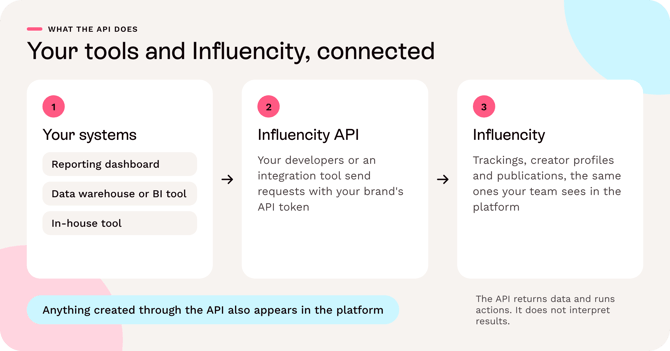
Both need the API add-on and both draw on the same credits. For a full comparison and a guide to which one fits your role, see API vs AI connector: which one should you use? . For set-up steps, see, Influencity AI connector for Claude and ChatGPT .
What you can do with the API today
Influencity API covers two areas of Influencity: content tracking (following the posts a campaign generates) and influencer profiles (your influencer relationship management, IRM, records).
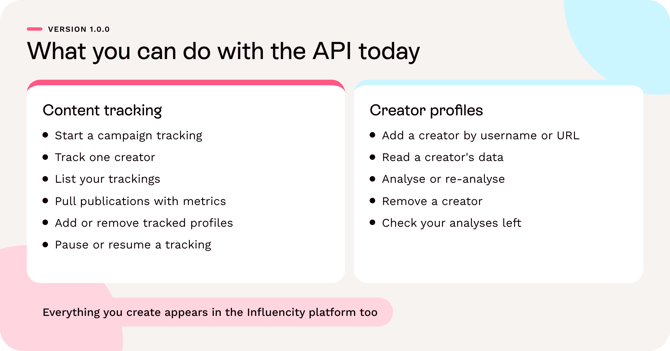
Content tracking
A tracking collects the publications that match a campaign's hashtags, mentions or keywords, or that come from specific creators.
|
What you want to do |
What the API does |
Endpoint |
|---|---|---|
|
Start a campaign tracking |
Creates a tracking with a unique name, start and end dates and at least one hashtag, mention or keyword (up to 5 of each). You can attach profiles at creation |
POST /content-tracking/v1/trackings |
|
Track one creator |
Creates a profile tracking for one of your own profiles |
POST /content-tracking/v1/trackings/profile |
|
See your trackings |
Lists trackings page by page, sorted by name, dates, status or type |
GET /content-tracking/v1/trackings |
|
Pull the publications |
Returns the publications of a tracking with their metrics, up to 100 per page |
GET /content-tracking/v1/trackings/{trackingId}/publications |
|
Change who is tracked |
Adds profiles to a tracking or removes them |
POST or DELETE /content-tracking/v1/trackings/{trackingId}/profiles |
|
Pause or resume |
Pauses active trackings or resumes paused ones |
POST /content-tracking/v1/trackings/pause or /resume |
|
Update data on demand |
Requests a refresh of a tracking's data |
POST /content-tracking/v1/trackings/{trackingId}/refresh |
|
Check your tracking slots |
Shows how many profile slots you have left |
GET /content-tracking/v1/trackings/quota |
Creator profiles
|
What you want to do |
What the API does |
Endpoint |
|---|---|---|
|
Add a creator |
Adds a profile to your IRM from a username or public URL, with or without analysis |
POST /profiles/v1/profiles |
|
Read a creator's data |
Returns a profile by network and username, or by profile ID |
GET /profiles/v1/profiles or /profiles/v1/profiles/{profileId} |
|
Analyse or re-analyse |
Starts an analysis for a profile you have added, or refreshes one already analysed |
POST /profiles/v1/profiles/{profileId}/analyze or /refresh |
|
Remove a creator |
Deletes a profile. Not possible while it has blocking relations, such as active trackings or campaigns |
DELETE /profiles/v1/profiles/{profileId} |
|
Check your analyses left |
Shows remaining profile analyses for the current period |
GET /profiles/v1/profiles/quota |
When a profile has been analysed, the response can include followers, average likes, comments and views, the audience's top gender, age, country and city, creator interests and estimated prices. Estimated prices are estimates, not the creator's actual fees. Analysis is available for Instagram, TikTok, YouTube and Twitch; other networks can be added without analysis.
Good to know: some actions depend on your plan. If a feature is not enabled for your brand, the API returns a 403 error. On-demand refresh of a tracking, for example, may not be available on every plan.
Full request and response details are in the Influencity API documentation.
Illustrative use casesThese are examples of how teams can use the API, built from what the endpoints support. They are not customer case studies, and no results are claimed.
Agencies: client reporting in your own dashboard
- Problem: every week someone exports campaign metrics and pastes them into client reports.
- Workflow: your developers list the active trackings, pull each tracking's publications page by page and load them into your branded reporting portal next to paid media and web analytics.
- You get: publication-level metrics (likes, comments, views and more) in the place your clients already look. Your team still decides what the numbers mean.
Brands: creator data in your warehouse
- Problem: influencer results live in one tool, while sales and media data live in another.
- Workflow: a scheduled job reads publications and profile data through the API and writes it to your warehouse or BI tool, such as BigQuery or Snowflake, where it can be combined with your other marketing data.
- You get: one set of numbers shared by the platform and your dashboards, because both read the same Influencity data.
Platforms and in-house tools: campaign set-up without the clicks
- Problem: each new campaign means creating a tracking and adding creators by hand.
- Workflow: your tool creates the tracking, adds the creators' profiles and keeps both systems aligned as the campaign runs. The tracking appears in Influencity straight away.
- You get: a repeatable set-up. Each creator added to an active tracking uses a tracking slot, so check your quota first (see "Credits, limits and costs").
No developers available? The AI connector offers a no-code route for part of this. See the AI connector article.
Before you start|
You need |
Details |
|---|---|
|
The API add-on |
API access is added to your existing plan. It is offered on Enterprise annual contracts, with pricing tailored to your expected tracking and analysis volume. Talk to your account manager or request access through the Influencity website |
|
An API token |
A secret key that identifies your brand. Your requests are limited to that brand's data |
|
Someone who can send web requests |
Your developers, data team or an integration tool. The API is a REST API that exchanges JSON, so anything that can send HTTP requests works |
|
Credits to spend |
Analyses and tracking slots come from your plan, as in the platform (see "Credits, limits and costs") |
Treat your token like a password. Anyone who has it can read and change your brand's data through the API. Store it in a secrets manager, never in shared documents or public code, and revoke it if you think it has been exposed.
Who does what: your account manager enables the API add-on, a person with access to your brand's settings creates the token, and your technical team builds and tests the integration.
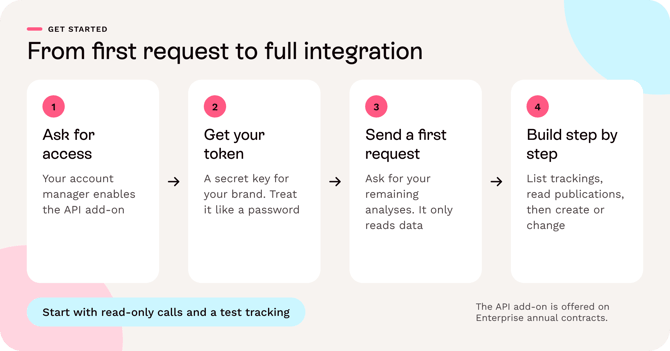
Get started in four steps- Ask for API access. Contact your account manager, or request access through the Influencity website. They will enable the API add-on for your brand.
- Get your API token. [TO CONFIRM BEFORE PUBLISHING: the exact steps and menu labels for creating a token. What is verified: tokens are listed and revoked in Influencity under Settings → API Key, and a brand can have up to 10 active tokens at a time. Revoked tokens do not count towards that limit.]
- Send a first, harmless request. Ask for your remaining profile analyses. It only reads data. Replace the placeholders with your own values.
- Build step by step. Move on to listing your trackings, then reading one tracking's publications, then creating or changing things.
Step 3: your first request
Every request sends your token in the Authorization header, using the Bearer scheme:
curl "<API BASE URL>/profiles/v1/profiles/quota" \ -H "Authorization: Bearer <YOUR_API_TOKEN>"What you should see: a short JSON answer with two numbers, the analyses you have left this period and your limit. In the documentation's example these are 42 and 100. A value of null means unlimited.
{ "remainingAnalysisPerPeriod": 42, "analysisLimitPerPeriod": 100 }If it fails: a 401 error means the token is missing or not valid. A 403 means the capability is not enabled for your brand's plan. See "Troubleshooting" below.
Tips for your first week
- Start with read-only calls and a test tracking before you automate anything.
- Reading data and checking quotas does not use analysis credits or tracking slots. Analysing a profile or adding creators to an active tracking does.
- Keep requests under the rate limit (see the next section) and read the response headers X-RateLimit-Limit and X-RateLimit-Reset to pace them.
Credits, limits and costs
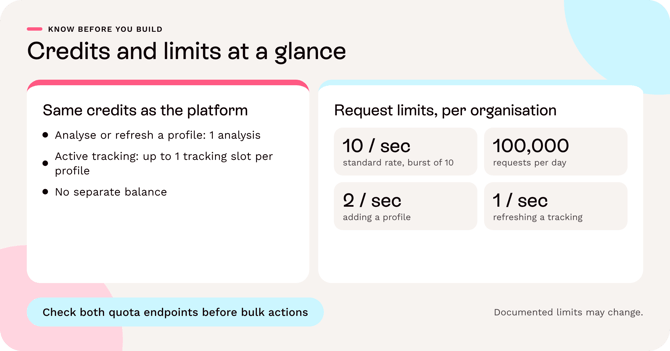
The API uses the same credits as the platform. There is no separate balance, and the same limits apply as in the app. Two kinds of credit matter:
- Profile analyses: a quota per period, used when you analyse or refresh a creator profile.
- Tracking slots: the number of profiles you can have in active trackings at one time.
|
Action |
What it uses |
|---|---|
|
Reading data (profiles, trackings, publications, quotas) |
No analysis credits or tracking slots |
|
Adding a profile without analysis |
No analysis credit |
|
Analysing or refreshing a profile |
1 profile analysis |
|
Creating a tracking |
Nothing in itself; tracking slots are used by the profiles it tracks |
|
Adding a creator to an active tracking, or resuming a paused tracking |
Tracking slots, up to 1 per profile |
|
Pausing a tracking or removing creators from it |
No credits |
|
Refreshing a tracking |
No credits. Needs the feature in your plan, and there is a minimum time between refreshes |
Use the two quota endpoints before bulk actions, so a large job does not stop halfway.
Request limits
Limits are counted per organization, so all tokens from the same brand share them.
|
Limit |
Value |
|---|---|
|
Standard rate |
10 requests per second (burst of 10) |
|
Daily quota |
100,000 requests |
|
Refresh a tracking |
1 request per second |
|
Add a profile |
2 requests per second |
As a guide, adding 100 profiles to a tracking takes around 10 seconds at the standard rate. If you go over the rate, the API answers 429 with the code RATE_LIMIT_EXCEEDED; wait and try again. If you use up the daily quota, it answers 429 with QUOTA_EXCEEDED, and it resets the next day. Documented limits may change, and Influencity will communicate material updates.
Troubleshooting
Errors come back in one JSON format, with an error code and a message. The HTTP status tells you where to look first.
|
Status |
What it usually means |
What to do |
|---|---|---|
|
400 |
The request is invalid: a missing field, a wrong format or a bad value. For example, a tracking needs start and end dates and at least one hashtag, mention or keyword |
Check the request against the documentation |
|
401 |
The token is missing or not valid |
Check the Authorization header and that the token has not been revoked |
|
403 |
The capability is not enabled for your brand's plan, or IRM profiles are not enabled |
Contact your account manager |
|
404 |
The profile or tracking does not exist or does not belong to your brand, or a social profile could not be found |
Check the ID, or the username and network |
|
409 |
A conflict: a tracking name already exists, a profile already has its own tracking, a profile is already being analysed, a tracking is finished and cannot take new profiles, or a profile cannot be deleted because of active trackings or campaigns |
Use the existing item, or resolve the conflict first. For a duplicate profile, the error can include the existing profile's ID |
|
422 |
A business rule was broken, for example no analyses left this period, or not enough tracking slots, or pausing a tracking that is not active |
Check your quotas and the tracking's status |
|
429 |
Too many requests (RATE_LIMIT_EXCEEDED), the daily quota is used up (QUOTA_EXCEEDED), or a tracking was refreshed too recently |
Wait and retry. For a refresh that is too soon, the response says how many hours to wait |
|
502, 503, 504 |
A temporary problem on the service side, or a timeout |
Try again in a few minutes. Ask for smaller pages if timeouts continue |
Tip: only retry automatically on rate-limit errors and on read requests. If a request that creates or changes something times out, check the result before sending it again, so you do not repeat the action.
FAQ
Do I need to know how to code? To use the API directly, yes, or you need a colleague or an integration tool that can send web requests. If you want a no-code route, use the AI connector for Claude or ChatGPT.
Will what I create through the API appear in the platform? Yes. Trackings, profiles and publications created through the API are the same ones your team sees in Influencity.
Does the API use my credits? Yes, it uses the same analyses and tracking slots as the platform, and there is no separate balance. Reading data does not use them.
Is the API the same as the AI connector? The connector uses the API behind the scenes, and covers profiles, trackings and credits. The API is the foundation for building your own integrations.
Which AI assistants work with the Influencity connector? Claude and ChatGPT.
How many API tokens can my brand have? Up to 10 active tokens at once. Revoked tokens do not count.