![LogoInfluencity_Negative.png]](https://knowledge.influencity.com/hs-fs/hubfs/LogoInfluencity_Negative.png?height=40&name=LogoInfluencity_Negative.png)
The new Reports workspace gives every publication you care about one home. Group the content of a campaign, a client, a season or any selection you like in a single report, whether it came from a campaign tracking, a profile tracking or a post you picked by hand.
Every publication arrives with the data it already has in Influencity, and synced trackings keep adding new publications on their own. No more adding posts one by one and typing their numbers in.
This article helps you to:
- create a report and link it to a client brand
- add content once or keep it in sync with a tracking
- find your way around a report and its Data manager
- add custom fields, export and tidy your reports
What's new in Reports
|
What you get |
What it means for you |
|---|---|
|
Any source, one report |
Bring in publications from profile, campaign or custom trackings, or individual posts, side by side |
|
Data included |
Publications come with their metrics, the same ones you see in your trackings and content library. Instagram data from Opt-in shows here too |
|
Reports that update themselves |
Sync a tracking and every new publication it captures lands in your report |
|
Your structure, your fields |
Link a report to a client brand and add custom fields, such as campaign end date or season |
This space focuses on bringing your publications together in one place. We'll keep building on it, with more ways to work with the data across a whole report.
New Reports and Legacy reports
Your existing reports are still there. While we roll out the new Reports, a selector lets you switch between the new Reports and Legacy reports.
Create a report
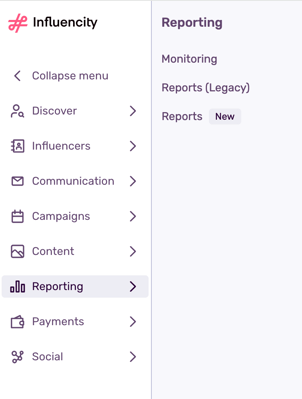
- Go to Reports and choose Reports new and then click Create report.
- Give your report a name.
- Optional: fill in any custom fields you've set up for reports.
- Click Create.
Optional: link it to a client brand. Agencies working with several clients can say who each report is for. Choose a brand you've created in Settings, or create one from the selector.
Add content: add once or keep it in sync
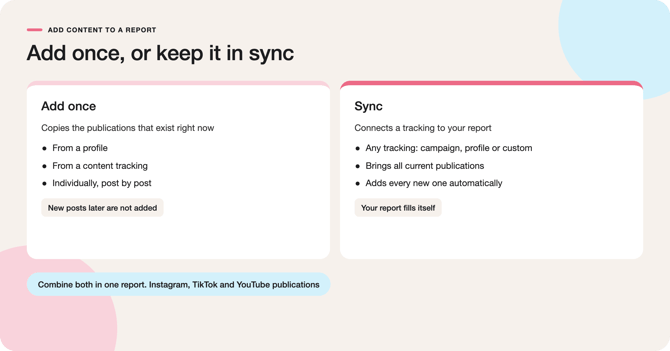
Open your report and click Add content.
|
Option |
What it does |
Best for |
|---|---|---|
|
Add once, from a profile |
Adds all the publications a profile has in its tracking right now |
A creator's past content |
|
Add once, from a content tracking |
Adds all the publications of a campaign tracking or any other tracking right now |
A finished campaign |
|
Add once, individually |
Adds just the publications you pick |
One-off posts |
|
Sync a tracking |
Adds all the tracking's current publications, then every new one automatically |
Live campaigns and ambassadors |
Publications you add once don't change if the source gets new posts later. You can sync any type of tracking: campaign, profile or custom.
Good to know:
- You can combine both. If you added a tracking's publications once, you can still sync that tracking later so new posts keep coming in.
- A tracking that's already synced to a report can't be synced to it again.
- Reports include publications from Instagram, TikTok and YouTube.
Inside a report
|
Tab |
What you'll find |
|---|---|
|
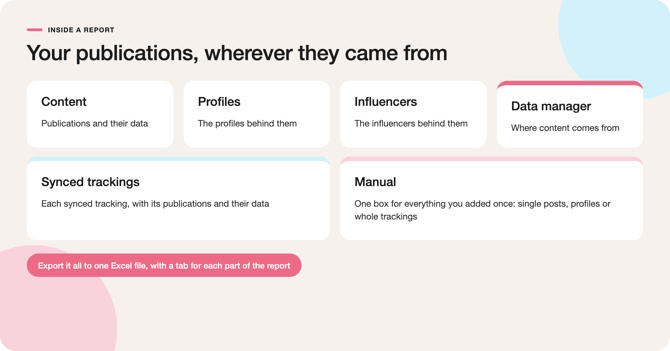
Content |
The list of publications, with all their data |
|
Profiles |
The profiles behind those publications |
|
Influencers |
The influencers behind those publications |
|
Data manager |
Where your content comes from |
As everywhere else in Influencity, you can create views, apply filters and save favorites. You can do the same with a publication in a report as anywhere else: open it, see its insights, download it or remove it.
Data manager
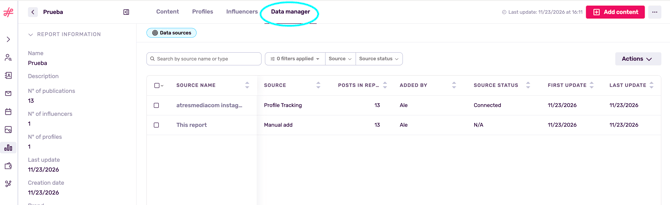
The Data manager tab shows the sources of your report, so you don't have to check publication by publication:
- Synced trackings, each with its publications and their data
- Manual, one box that gathers everything you added once: single posts, the content of a profile or a whole tracking
Custom fields for reports
- Open a report and go to Manage properties.
- Add a field to the default Report information group, or create a new group to keep related fields together.
- Name the field and choose its type: for example, a date for Campaign end date, or a list of options for Season.
- Save.
Your custom fields appear in each report's side panel, as columns in the reports table and as filters. You can't sort by them yet. They belong to the report itself, not to its publications or influencers.
Export, download and delete
|
Action |
What you get |
|---|---|
|
Export the report |
One Excel file with a tab for each part: report information, content, profiles and influencers |
|
Download images |
The images of the publications |
|
Delete |
Remove publications one by one or in bulk |
Tips to get the most out of Reports
- Sync at kickoff. Create the report when the campaign starts and sync its tracking straight away. It fills itself while the campaign runs.
- Follow your ambassadors. Sync a profile tracking for each long-term ambassador, so all their content lands in one report.
- Mix sources. Combine a synced campaign tracking with a few hand-picked posts to tell the whole story in one report.
- Use client brands. Agencies: link every report to its client so your team finds the right one fast.
- Make custom fields work for you. Add fields such as campaign end date, market or budget code, then filter your reports by them.
- Hand over in one file. Export the report to share a complete Excel file with your client.
- Invite creators to Opt-in. Instagram data from authenticated creators flows into your report automatically.
FAQ
What happens to my existing reports? They stay available as Legacy reports. Use the selector to switch between the new Reports and Legacy reports.
If I add a tracking once, will new publications appear? No. Adding once copies the publications that exist at that moment. Sync the tracking to keep adding new ones.
Does syncing add older publications too? Yes. The report gets all the publications the tracking has when you sync, and every new one after that.
Which networks are supported? Instagram, TikTok and YouTube.
Can I refresh the data of a report? There isn't a refresh option inside reports yet.
Does a report show totals for all its publications? Not in this first version. A report lists its publications with all their data.