![LogoInfluencity_Negative.png]](https://knowledge.influencity.com/hs-fs/hubfs/LogoInfluencity_Negative.png?height=40&name=LogoInfluencity_Negative.png)
The Influencity AI connector lets you work with your Influencity data from inside Claude or ChatGPT. You ask in plain language, and the assistant reads your profiles, trackings and credits. It can also create or pause trackings, but only after you confirm. It takes about two minutes to set up and needs no coding.
Technically, the connector is an MCP server (Model Context Protocol is an open standard for connecting AI assistants to tools) that uses the Influencity API. You never see this: you stay in your normal chat.
What you need
|
Requirement |
Detail |
|---|---|
|
API add-on |
Your brand must have the API enabled. The connector is included with the API add-on. |
|
Influencity user |
Your usual email and password for brand.influencity.com. Google sign-in and SSO are not supported. |
|
AI assistant |
Claude or ChatGPT (web or desktop app) |
|
Technical skills |
None. No coding and no keys to copy |
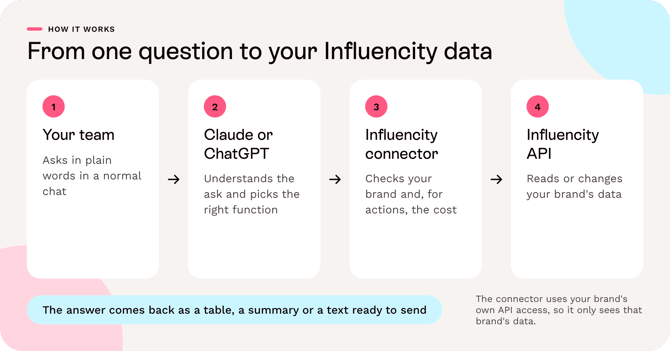
How it works
- You ask a question in a normal chat.
- Claude or ChatGPT understands the request and picks the right Influencity function.
- The connector checks your brand and, for actions, the cost.
- Influencity reads or changes your brand's data, and the answer comes back as a table, a summary or a text ready to send.
The connector uses your brand's own API access, so it only sees that brand's data. The data comes from Influencity. Any summary, comparison or draft text is written by the AI assistant, so review it before you share it.
Install in Claude
Each person connects with their own Influencity user. Nobody shares another person's access.
Personal plans (Pro and Max)
- In Claude, go to Settings → Connectors and click Add custom connector.
- Enter the name Influencity and the MCP server URL
https://mcp.influencity.com/mcp, then click Add. Claude detects the sign-in method on its own, so leave the default options. - Click Connect. The Influencity sign-in page opens.
- Log in with your Influencity email and password.
- Choose the brand. You only see this step if your user has several brands with the API; brands without it appear grayed out.
- Review what the connector can do and click Authorize.
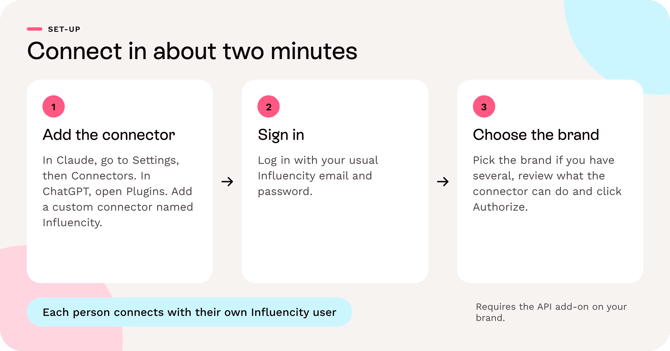
Expected result: Influencity appears in your connectors as connected, and you can start asking questions in a new chat.
Team and Enterprise plans
- Only an Owner can add the connector, once for the whole organization: Organization settings → Connectors → Add → Custom → Web, using the same name and URL as above.
- Each member then goes to Settings → Connectors, finds Influencity, clicks Connect and logs in with their own Influencity user.
Several brands in Claude: one connection works with one brand. To switch brand, disconnect and connect again, choosing the other brand.
Install in ChatGPT
ChatGPT calls connectors Plugins ("Complementos" in Spanish). Menu names change often. The steps below match the interface on 28 October 2026.
Personal plans
- Open Plugins in the left menu and click + (or Add), then Add custom MCP server.
- Enter the name Influencity and the server URL
https://mcp.influencity.com/mcp. Set authentication to OAuth. It is detected automatically, so you do not need to change the advanced OAuth settings. - Tick the risk acknowledgement and click Create as plugin.
- Click Connect Influencity, log in with your Influencity email and password, choose the brand and click Authorize.
Business and Enterprise workspaces
- If you do not see Add custom MCP server (only "Create plugin" and "Upload plugin"), your workspace admin has to allow it. In Workspace settings → Permissions & roles, they enable the permission to create plugins with MCP servers (developer mode). The exact label may vary.
- After that, each member follows the personal steps with their own Influencity user.
Several brands in ChatGPT: in the plugin settings, under Connected accounts, click Connect another account, log in again and choose the other brand. ChatGPT can then read both brands in the same chat, and it asks which brand to use before any change.
What you can ask
You do not need to name any function. Ask in your own words and the assistant picks the right one. These prompts are illustrative examples, not recorded results. Replace the names with your own.
|
Goal |
Example prompt |
What the connector does |
Cost |
|---|---|---|---|
|
Summarize a campaign |
"Give me a campaign report for my tracking 'Summer Launch'." |
Reads the tracking's publications and builds a report: volume, reach, interactions and engagement, top posts and creators |
Free |
|
Find your trackings |
"Which of my trackings are active?" |
Lists your trackings, filtered by status |
Free |
|
Check a creator |
"Show me the audience and engagement for this Instagram profile." |
Reads a profile that is already in your Influencity profiles (IRM) |
Free |
|
Compare creators |
"Compare these four creators side by side." |
Compares 2 to 5 profiles |
Free if all are already analyzed |
|
Start tracking creators |
"Track these five creators in my 'Summer Launch' tracking." |
Shows a preview with the total cost, then adds them after you confirm |
Up to 1 tracking slot per profile |
|
Check your credits |
"How many analyses and tracking slots do I have left?" |
Shows remaining credits and limits |
Free |
|
Pause a finished campaign |
"Pause my 'Spring Sale' tracking." |
Shows a preview, then pauses it after you confirm |
Free, and frees slots |
Check the output. The numbers come from Influencity. Wording, comparisons and recommendations are written by the AI assistant. Interactions in campaign reports do not include views.
Estimated prices. The connector shows estimated prices in USD (they are estimates, not the creator's real fees). On Instagram, they appear per format: Feed post, Reel and Story, with a minimum-maximum range when the profile has been analyzed with the new model, plus the CPM (cost per 1,000 views). On other networks, you get a price per post and the CPM.
What it can do
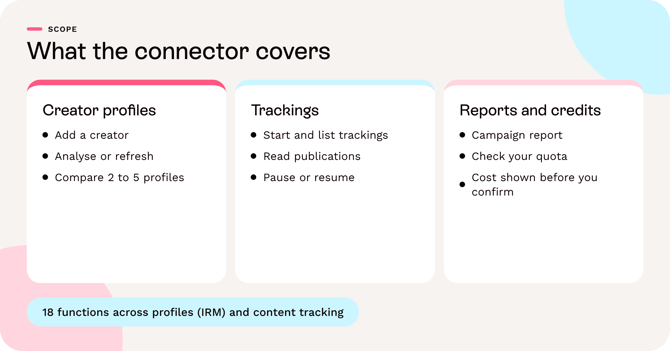
The connector covers three parts of Influencity: profiles (IRM), trackings and credits.
|
What the connector does |
|---|
|
Profiles: add a profile by username or URL; analyze it (1 analysis); find saved profiles, read metrics and compare 2 to 5; refresh and delete |
|
Trackings: create campaign trackings (hashtags, mentions, keywords) or profile trackings; add and remove creators; pause, resume and refresh; list trackings; read publications and metrics; campaign summary |
|
Credits: analyses and tracking slots left |
What it can't do yet
The connector does not cover: searching for new creators (Discover), lists, email campaigns and sequences, the Campaigns module, the Reports module, payments, Brand Safety, Social Hub, Monitoring or story insights. You can do all of this in the platform.
You approve every change
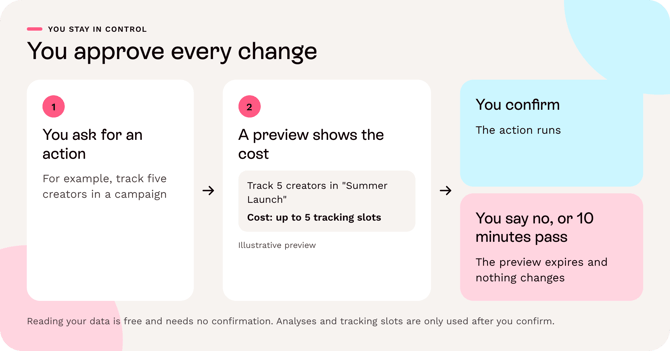
Reading is free and needs no confirmation. For actions, nothing that uses credits runs until you confirm:
- You ask for an action.
- The assistant shows a preview with a Cost line.
- You confirm, and the action runs.
- If you say no, or 10 minutes pass, the preview expires and nothing changes.
What uses credits
|
Action |
Cost |
|---|---|
|
Reading anything (profiles, trackings, publications, credits, summaries) |
Free |
|
Adding a profile without analysis |
Free |
|
Analyzing or refreshing a profile |
1 profile analysis |
|
Adding a creator to an active tracking, or resuming a tracking |
1 tracking slot per profile (per social network) |
|
Pausing a tracking or removing creators |
Free, and frees slots |
|
Refreshing a tracking |
Free. Needs the feature in your plan, with a minimum time between refreshes |
Deleting a profile is permanent. It is refused if the profile is in an active tracking.
Security, API keys and several brands
- Your own login: you sign in with your Influencity user on an Influencity page. The password is only used to sign in and is not stored.
- One brand per connection: the assistant only sees the brand you chose at sign-in.
- Preview before every change: before analyzing, creating, pausing or deleting anything, the assistant shows a preview with the cost and waits for your confirmation.
- Your data goes to the assistant you choose: what the assistant reads is sent to Claude (Anthropic) or ChatGPT (OpenAI), under your own agreement with that provider.
API keys
- Each connection creates an API key in your brand, named for example Influencity MCP – Claude – 2026-10-28 08:53 UTC.
- A brand can have up to 10 active API keys. Revoked keys do not count.
- Disconnecting in Claude or ChatGPT does not delete the key. To remove it, go to Influencity → Settings → API Key and revoke it. Revoking the key of an active connection stops that connection.
Troubleshooting and FAQ
|
Question or problem |
Answer |
|---|---|
|
"Your brand does not have the API enabled" |
Your brand does not have the API add-on. Contact your Influencity account manager |
|
I have several brands but it went straight to one |
Only one of your brands has the API. |
|
"The email or password is not correct" |
Use your usual Influencity email and password. Google sign-in and SSO are not supported. |
|
The assistant doesn't use Influencity |
Make sure the Influencity connector is enabled in that chat (tools menu), and mention "Influencity" in your request. |
|
I do not see "Add custom connector" in Claude |
On Team and Enterprise plans only an Owner can add it. Once added, each member just clicks Connect |
|
I do not see "Add custom MCP server" in ChatGPT |
On Business and Enterprise workspaces the admin must enable it (see "Install in ChatGPT") |
|
"This brand has reached its API key limit" |
Revoke old keys in Influencity → Settings → API Key and connect again |
|
The connection says it is about to expire, or tools stop working |
Reconnect the connector to renew it. The assistant shows a notice when 15 days or fewer remain |
|
A tracking refresh was refused |
There is a minimum time between refreshes, and the feature must be in your plan. The message says how long to wait |
|
A preview expired |
Previews last 10 minutes. Ask for the action again |
|
Does it use credits? |
Reading never does. Analyses and tracking slots are used as in the platform, always after a preview |
|
Which language does it answer in? |
The language you write in |