![LogoInfluencity_Negative.png]](https://knowledge.influencity.com/hs-fs/hubfs/LogoInfluencity_Negative.png?height=40&name=LogoInfluencity_Negative.png)
Managing multiple influencer campaigns often means dealing with a flood of content scattered across different tracking sessions.
To solve this, we are excited to introduce the Content Library, a centralized hub designed to streamline how you view, organize, and utilize every piece of content your brand generates.
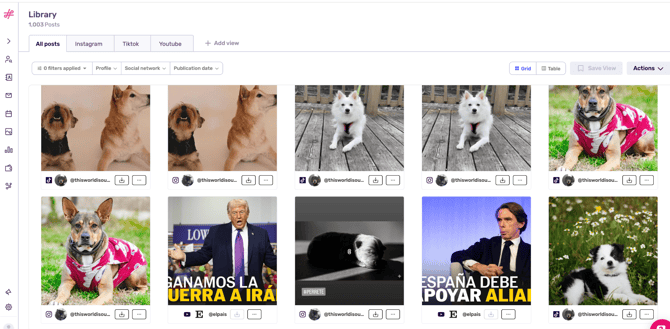
Think of the Content Library like the photo gallery on your smartphone. Just as your phone automatically gathers photos from your camera, WhatsApp, and downloads into one unified view, the Content Library aggregates every post captured across all your brand's tracking sessions into a single, searchable interface.
Why Use the Content Library?
The Content Library is a strategic tool designed to provide:
Unified Visibility
No more jumping between individual tracking sessions to find a specific post. Everything is now available in one place.
Organized Insights
Content can be automatically grouped by social network and content and other filters you can shows from type (e.g., Videos, Reels, Carousels), making it easy to see what formats are performing best.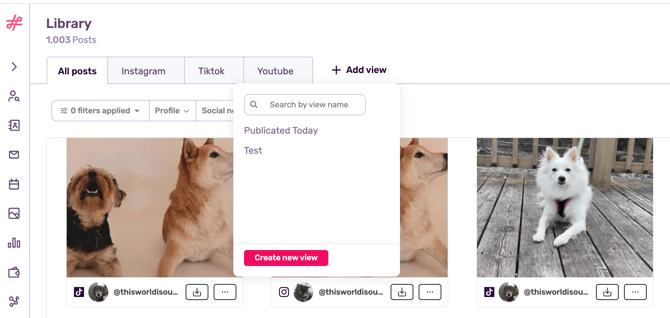
Streamlined Reporting
Easily identify high-performing posts and add them directly to your reports with just a few clicks.
How to Use the Content Library
Navigating and using the library is designed to be intuitive and familiar.
1. Accessing the Library
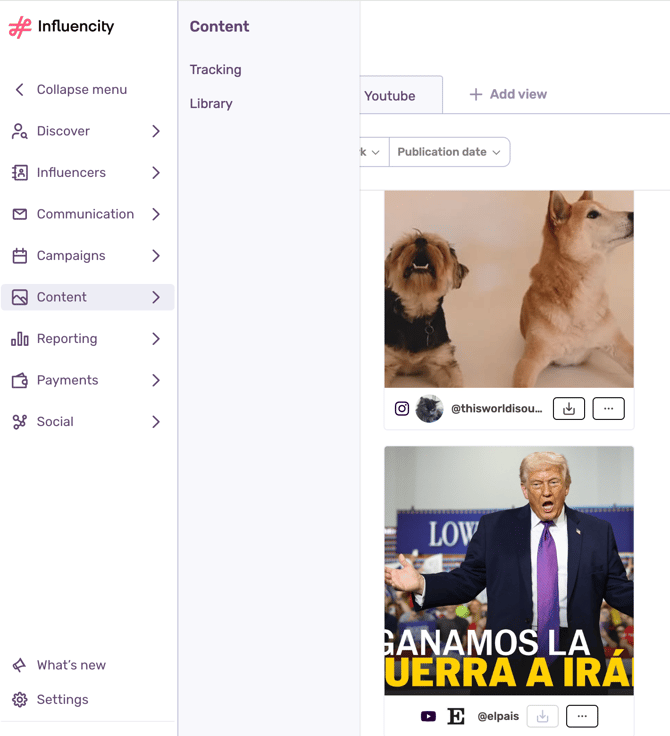
You can find the new section within the Content tab on your dashboard. Simply click on Library to view your aggregated content.
2. Viewing and Filtering
Layout Options
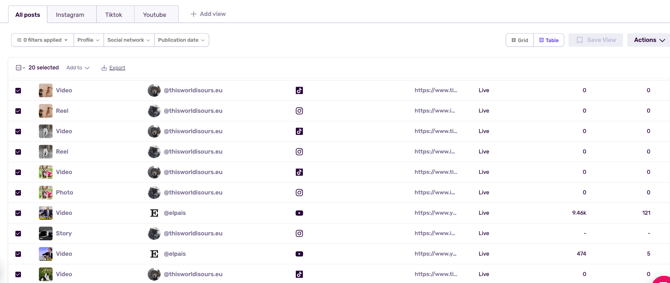
Choose between a Grid view for a visual overview or a Table view for detailed data.

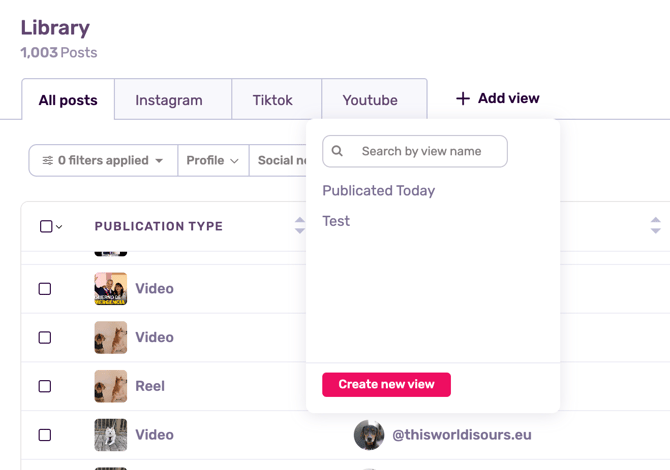
Custom Views
While we provide default tabs (like Instagram, TikTok, and YouTube), you can create your own custom views by applying specific filters to match your workflow.
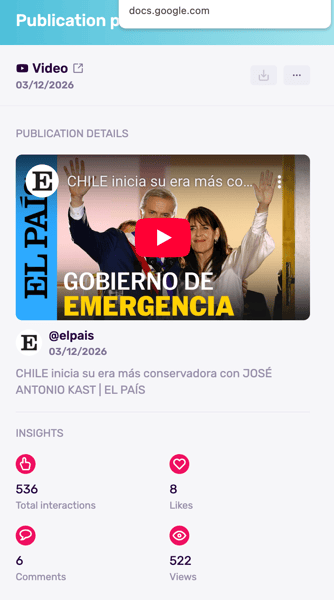
Deep Dives
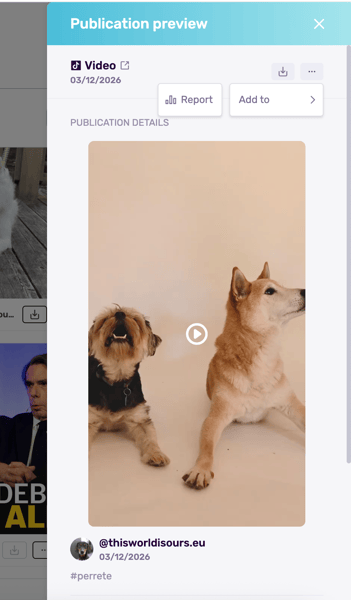
Click on any individual post to see its full details, specific insights, and the original media.
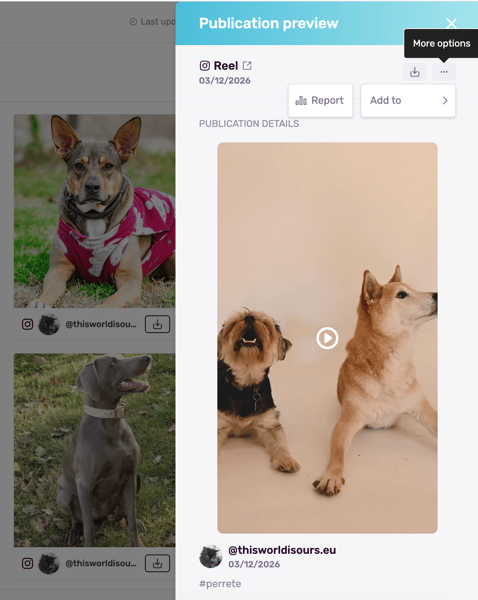
3. Taking Action
- Add to Report: Select content (individually or in bulk) and add it directly to an existing report.
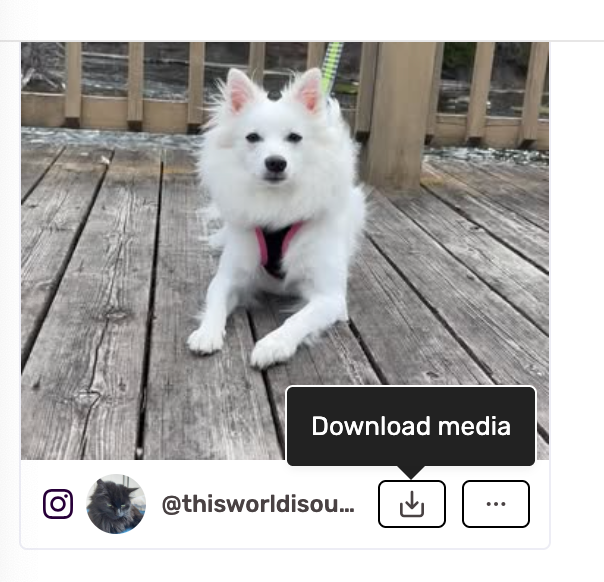
- Download Media: Download the content for reuse in other marketing channels.
- Export Data: You can export your library view for offline analysis, both individually and in bulk.
-
Dynamic Syncing
The Content Library and your tracking sessions use the same live database. If you delete a post from an individual tracking session, it will also disappear from your Library.
Note: Currently, bulk exports to Excel are limited to 100 rows at a time to ensure optimal system performance.