![LogoInfluencity_Negative.png]](https://knowledge.influencity.com/hs-fs/hubfs/LogoInfluencity_Negative.png?height=40&name=LogoInfluencity_Negative.png)
When sharing a proposal with clients or external stakeholders, you can control exactly which information they see.
The Custom Proposal Share action allows you to customize the content included in a shared proposal by selecting which sections and metrics are visible. This helps you present only the information that is relevant to your campaign, keeping proposals clear, focused, and tailored to each audience.
Instead of sharing every available metric, you can customize the proposal to display only the sections and data relevant to your audience. This helps create cleaner, more focused proposals while keeping internal information private.
Why customize a proposal?
Customizing a shared proposal allows you to:
- Display only the metrics relevant to your campaign or client.
- Simplify proposals by removing unnecessary data.
- Create a consistent viewing experience for everyone accessing the shared link.
Note: Customizing a shared proposal only affects the public version. Your internal workspace always retains full access to all proposal data. The shared view changes based on the configuration you apply. It updates dynamically, and no new versions are created.
How to customize a proposal
Step 1: Choose the source of customization
You can access the customization settings in two ways:
Option 1: From the Actions menu
- Open the proposal you want to share.
- Click on the main actions dropdown next to the share button and select Customise Proposal.
Option 2: While creating a share link
- Open the proposal.
- Click the Share button, and while setting up your link, click the Configure Proposal button.
Step 2: Configure proposal visibility
Within the customization panel, use the visibility checkboxes to choose which information is included in the shared proposal.
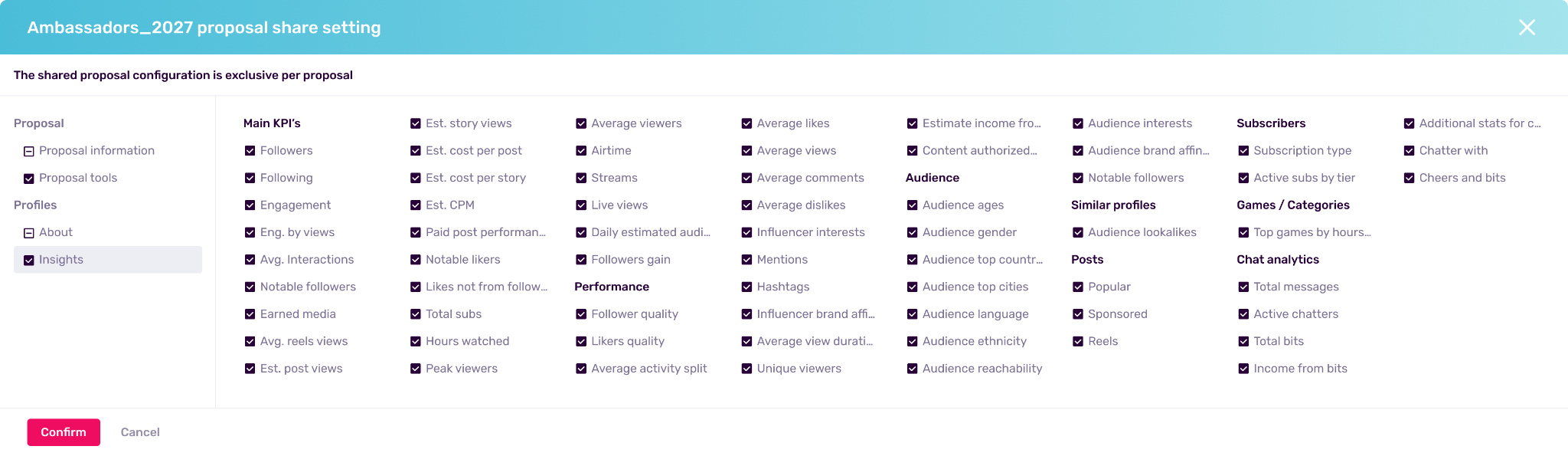
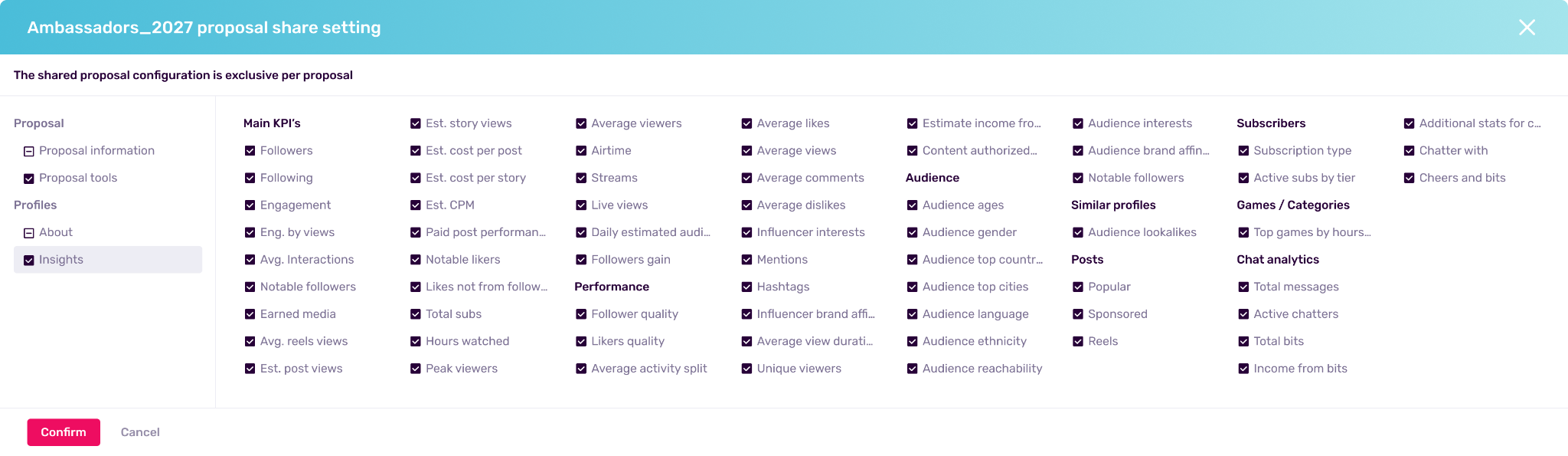
Inside this configuration modal, you will find groups of data you can toggle. Our tri-state checkboxes make it easy for you to select entire groups (you'll see a tick), deselect everything (the box will remain empty) or cherry-pick specific items (you'll see a dash on each item selected).
Sections you can customize
Let's now have a look at the type of information type you can choose to include or exclude from your shared proposals:
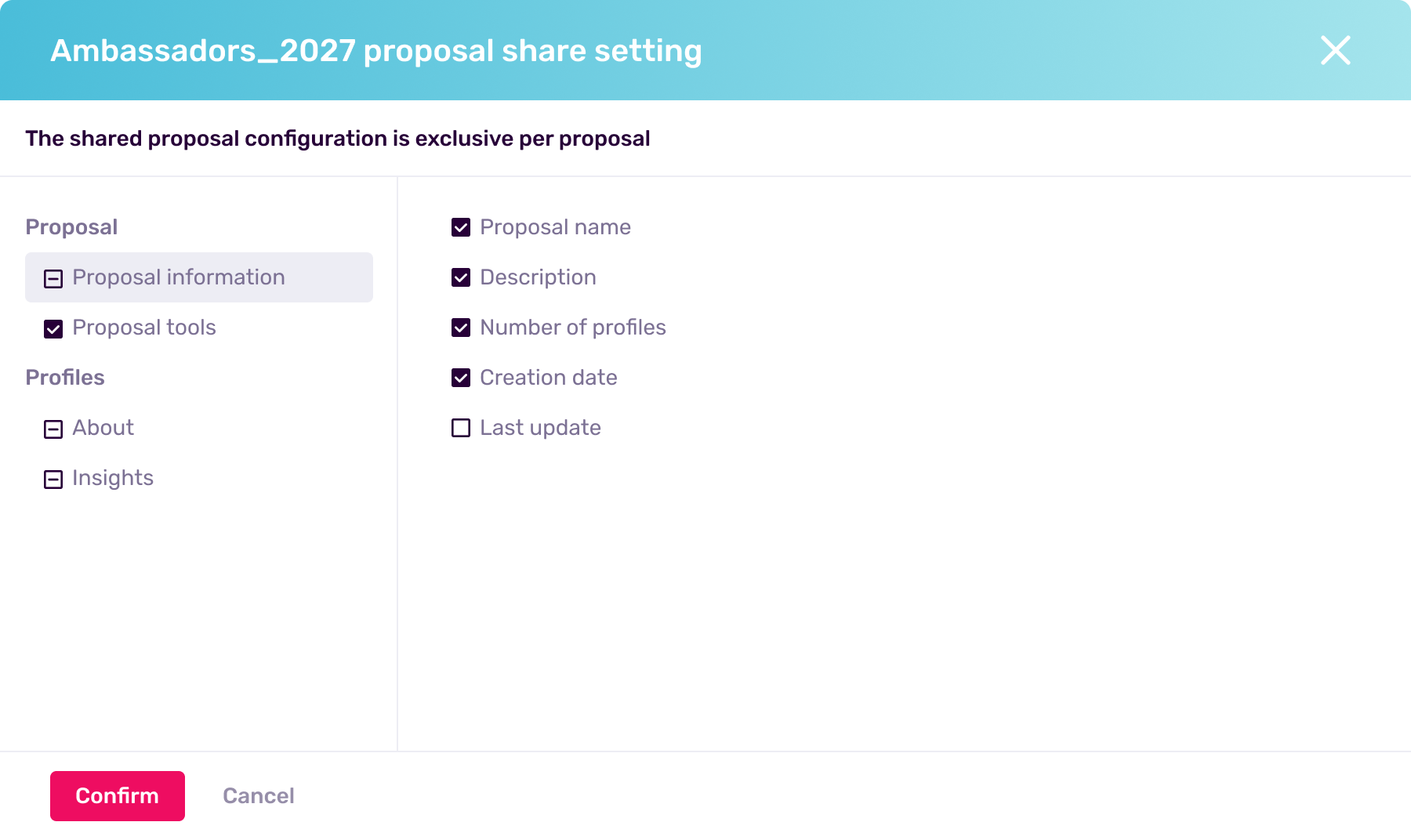
1. General Proposal Information
Set the stage by deciding which high-level details make the cut:
- Proposal Name and Description
- Total Profile Count
- Creation and Last Update Dates
- The left-hand information sidebar
2. Proposal Tools
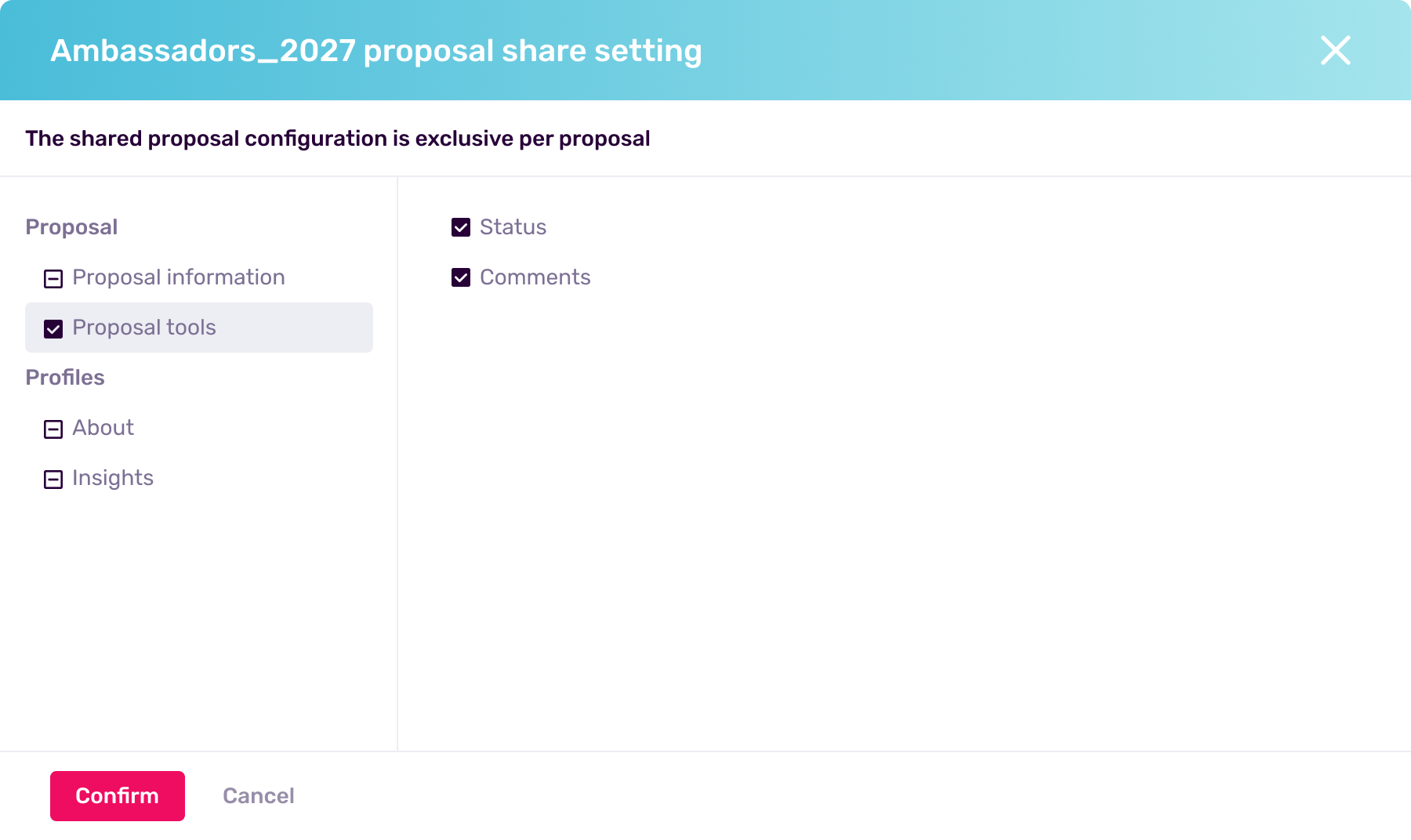
Control which collaborative elements are visible:
- Status Column: Hide or display the ability to see if a profile is Accepted, Backup, or Rejected.
- Comments Column: Hide team and stakeholders' feedback and notes to keep the view purely analytical.
3. Profile About Data
Hide or display profile metadata, including:
- Influencer alias
- Original source
- Content Tracking status
- Account types
- Age
- Gender
- Language
- Location
- And more…
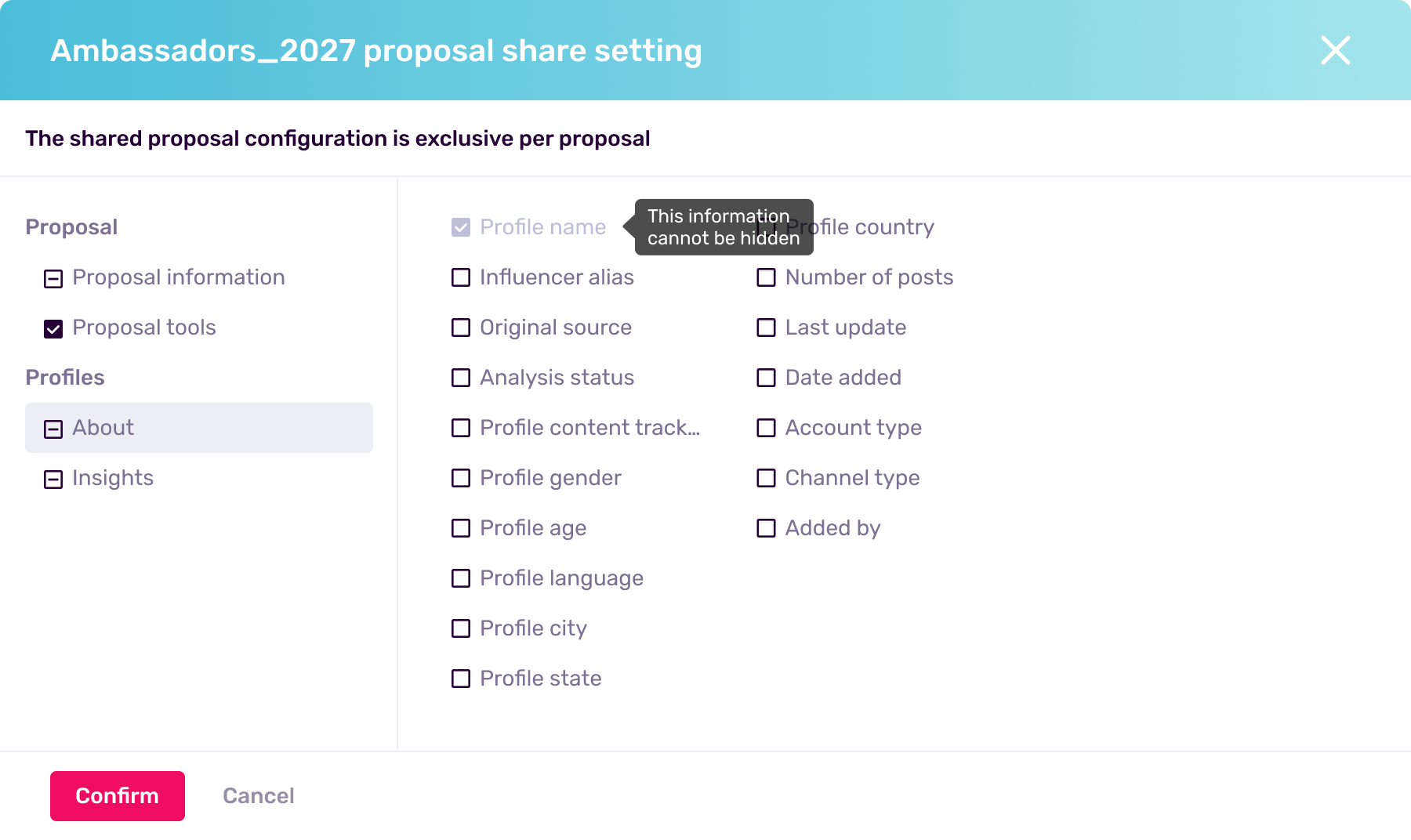
Note: The creator's profile name is always displayed and cannot be hidden.
4. Performance and audience insights
Select which analytics are visible, including:
- Audience size
- Engagement metrics
- Audience Quality insights
- Recent content
- Audience demographics
- Similar creators
For supported platforms, you can also control platform-specific metrics. For example, Twitch proposals allow you to hide metrics such as:
- Chat analytics
- Games
- Categories
- Subscribers
Step 3: Apply your changes
Once you've configured the proposal, save your changes by confirming them. The customized view is automatically applied to the shared proposal link.
If a section or metric is hidden, it is removed throughout the shared proposal, including tables, charts, and creator profile views, providing a clean and consistent experience for all recipients.
Important: All users who access the same shared proposal link will see the same customized version. Changes only affect the shared proposal and do not modify the internal proposal available in your workspace.