![LogoInfluencity_Negative.png]](https://knowledge.influencity.com/hs-fs/hubfs/LogoInfluencity_Negative.png?height=40&name=LogoInfluencity_Negative.png)
Campaign tracking allows you to monitor the performance and content delivery of influencers by automating content logging from the start, while you are setting up your campaign brief.
1. Platform Coverage
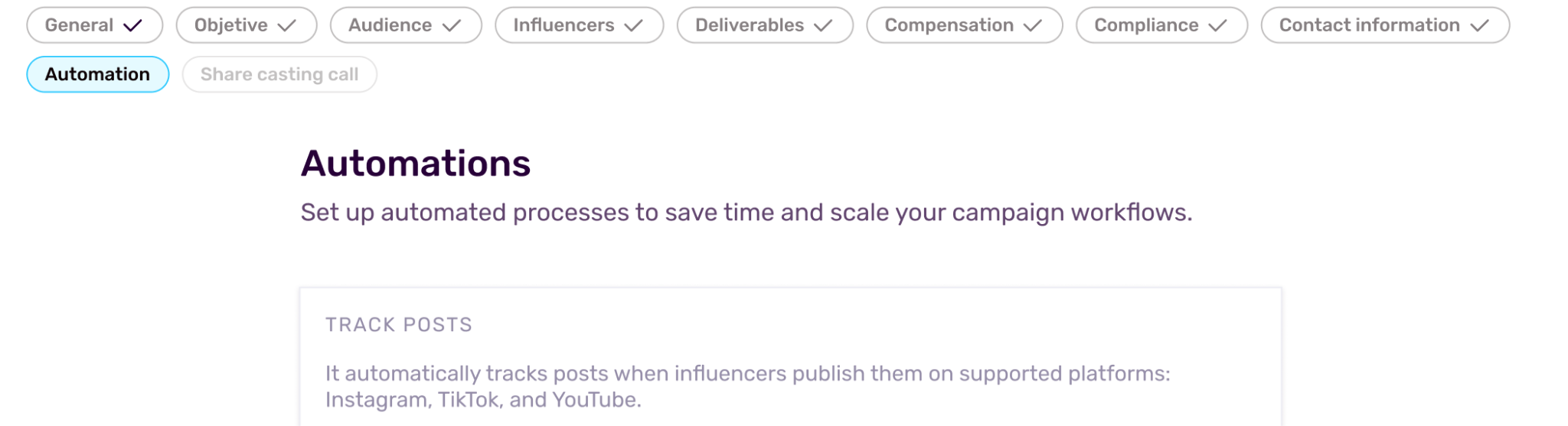
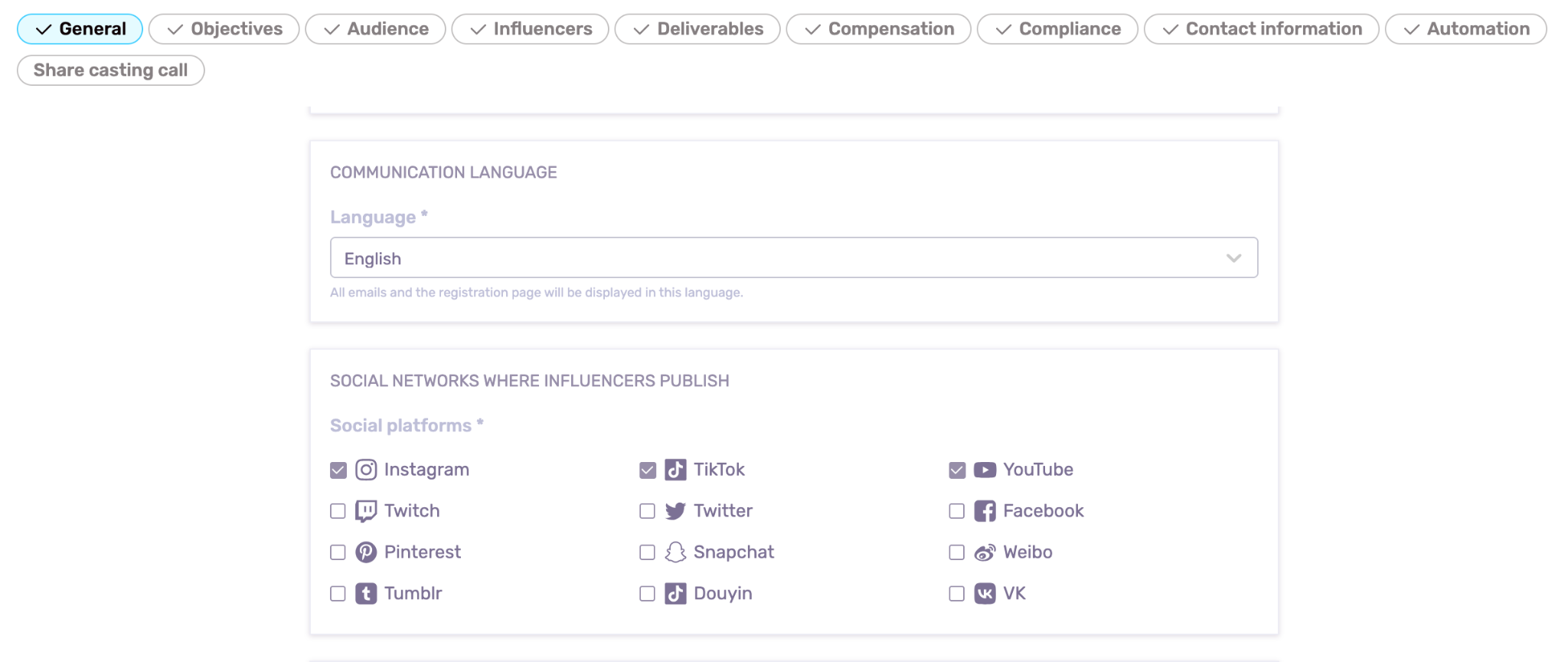
Tracking is currently implemented across the three major social media networks:
- TikTok
- YouTube
2. Hashtag and Mention-Based Monitoring
The system identifies relevant content by tracking specific brand mentions and hashtags associated with the campaign. This ensures that only posts related to your casting call are captured in the reports.
Note: You can have a maximum of 5 mentions and 5 hashtags in order for the system to allow you to track profiles. If you add more than these, then a modal will show up letting you know you can’t activate the tracking within the campaign.
Why Use Campaign Tracking?
Zero Manual Effort
Stop searching for posts manually. The system identifies content using your specific hashtags and brand mentions by the influencers you’ve added into your campaign.
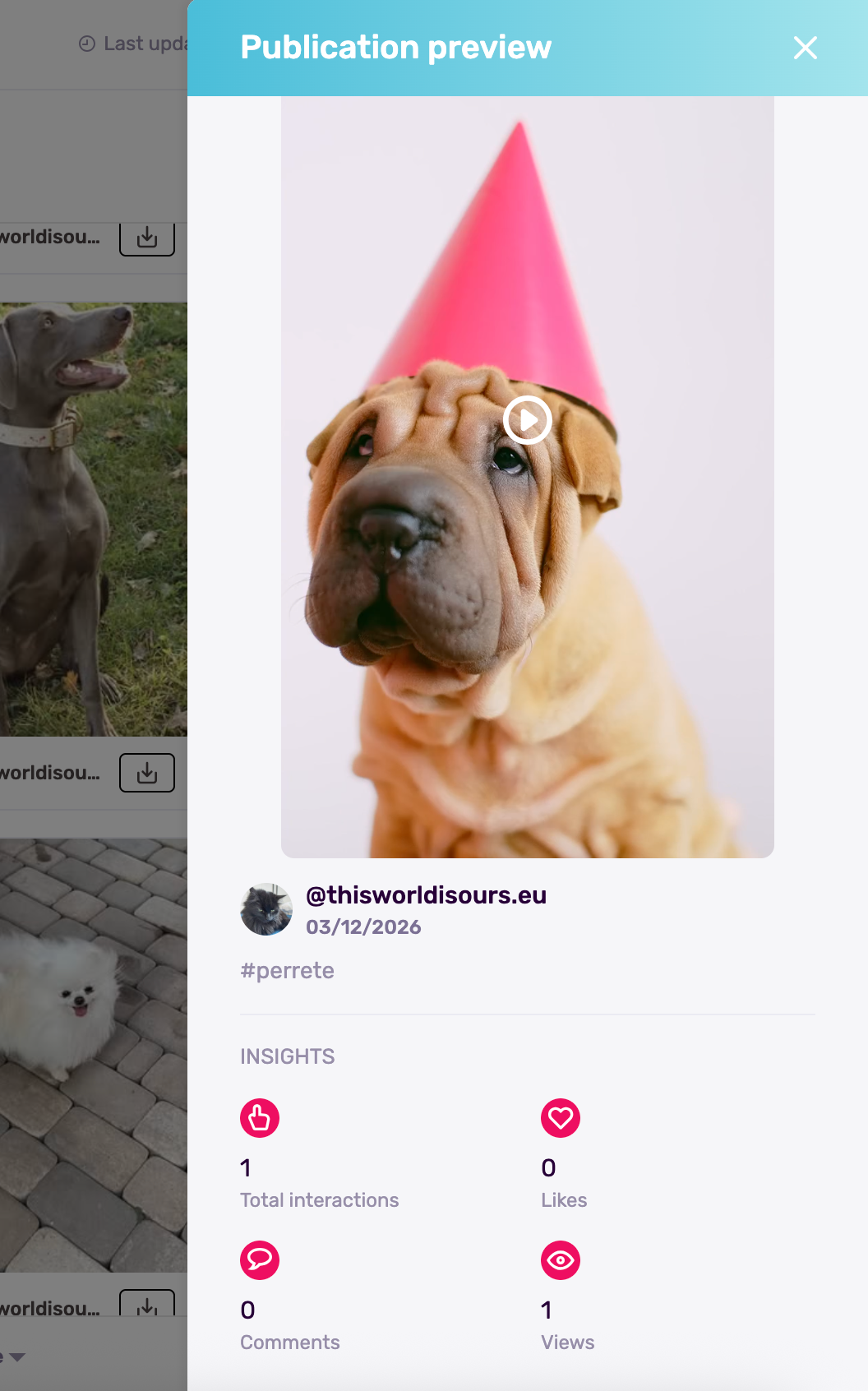
Publication-Specific Insights
High-level data is good, but knowing which content drove the most impact is better. Later on, you can select manually which campaign post you want to send to reporting.
Unified Dashboard
See all the content and their metrics all in one place, linked directly to your original Casting Call.
How to Launch Your Tracking (Step-by-Step)
Step 1: Campaign Prerequisites
Before you can activate automated tracking, your Casting Call must meet specific requirements in the briefing phase:
- Define Your Deliverables
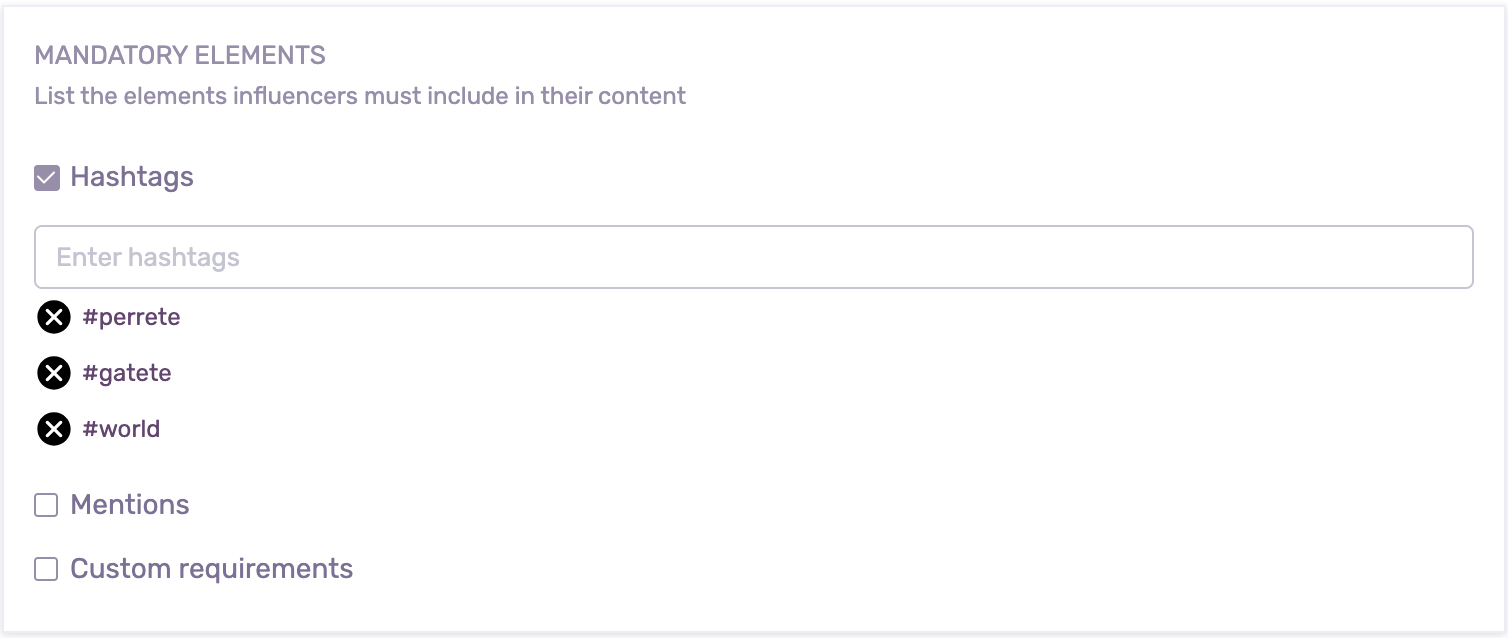
You must define at least one hashtag or mention in the Deliverables tab. These act as the "triggers" the system uses to identify campaign-related posts.
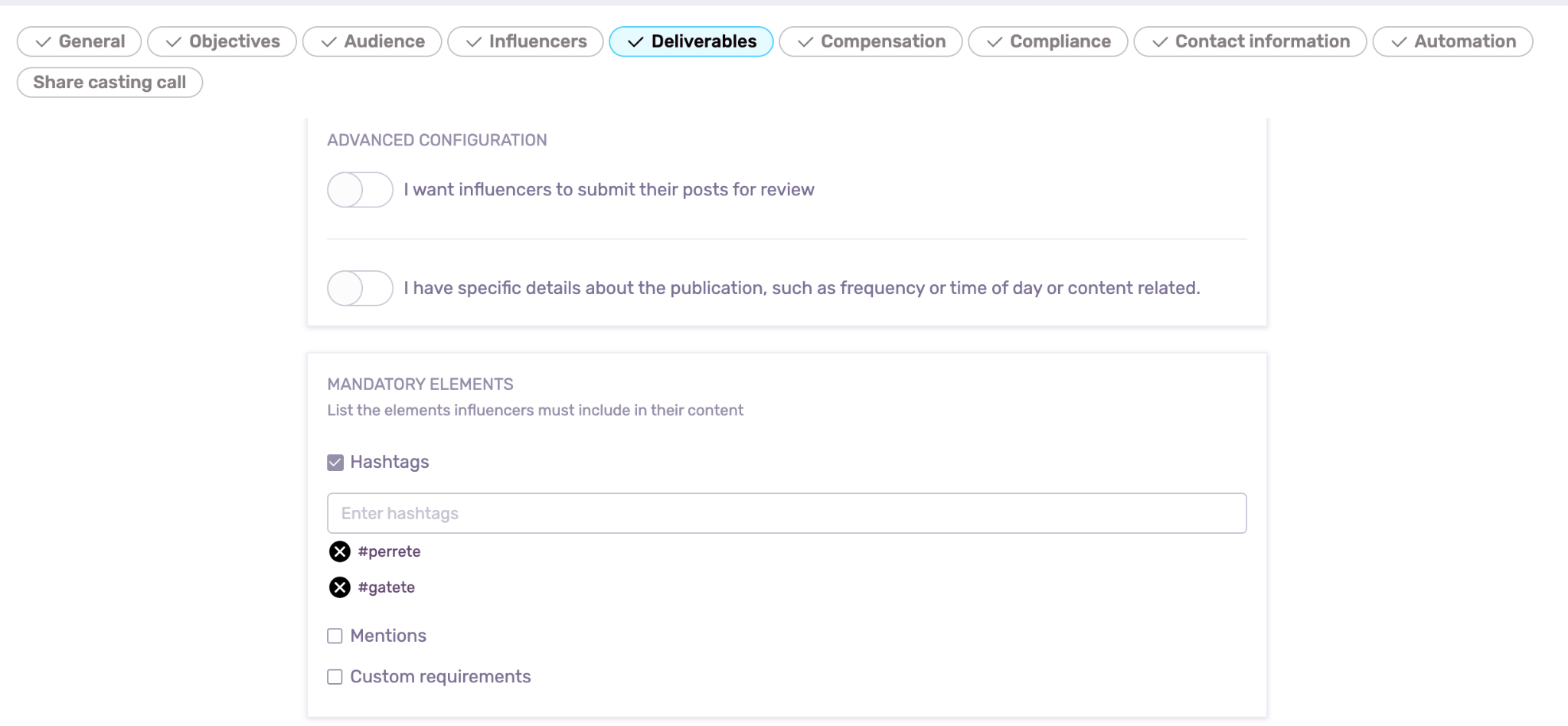
In short, choose the specific hashtags (e.g., #YourBrandSummer) and brand mentions that influencers are required to use.
- Platform Compatibility
Tracking is currently supported for TikTok, YouTube, and Instagram. If you select a non-compatible platform (like Snapchat) in your briefing, the system will alert you that tracking cannot be enabled for those specific profiles.
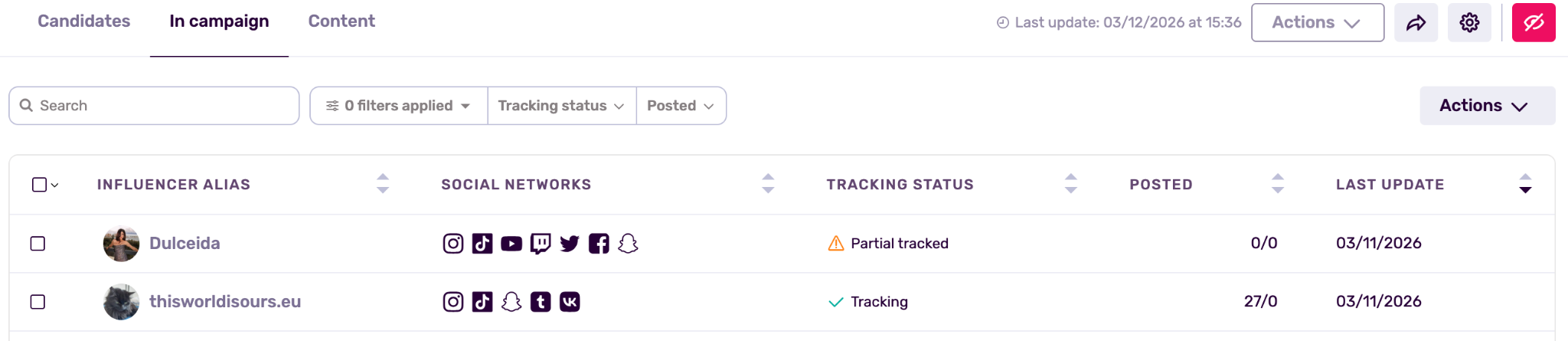
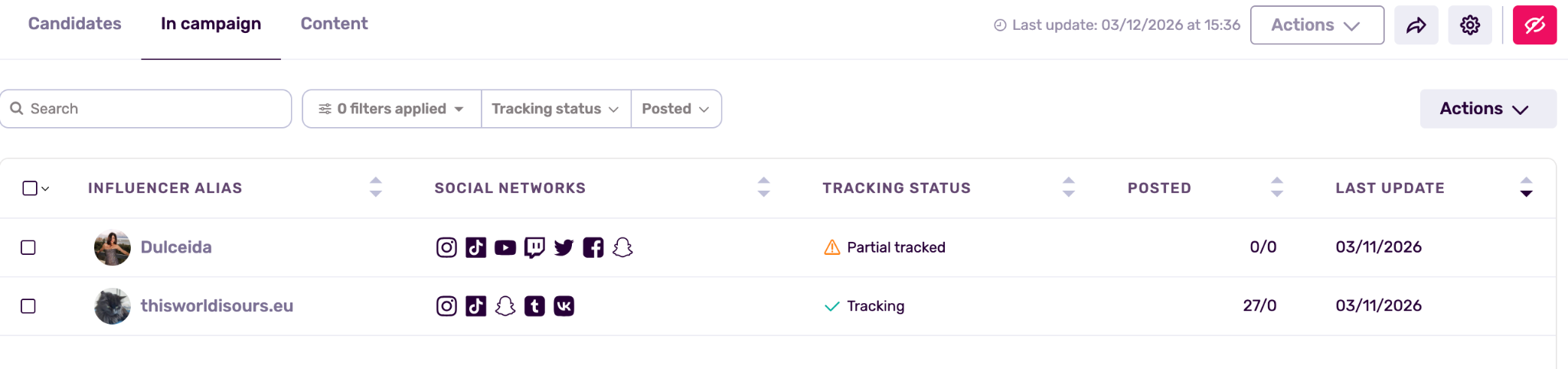
Remember that the status partial tracking implies that out of the socials you’ve chosen, you are not tracking them all. If you wish to track all of them, you can force it manually by clicking on the refresh button and clicking on the refresh button inside the modal to do it one by one or you can also click on track all profiles if you want to have all of them tracked at once.
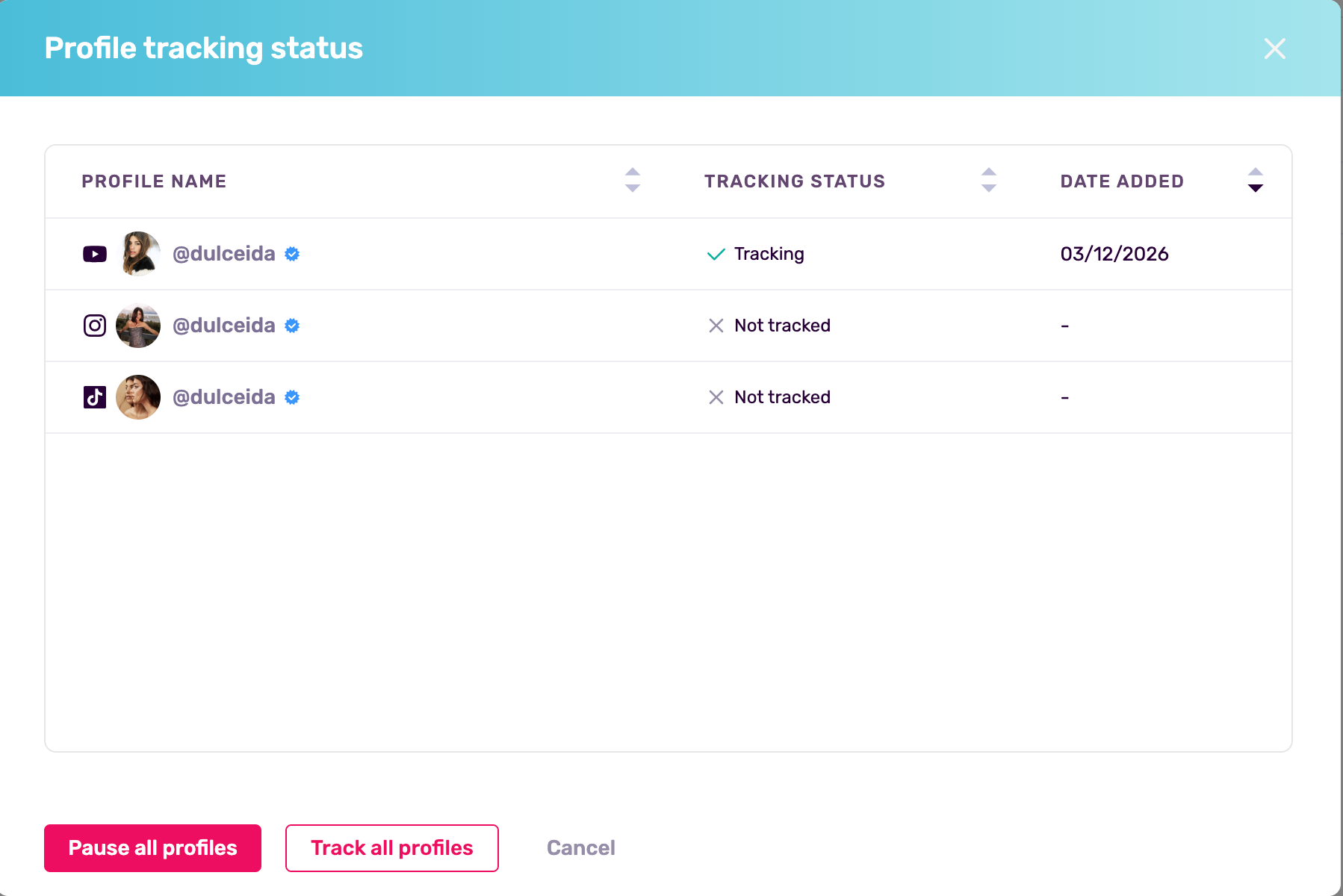
You can also pause tracking at any time, either one by one or by clicking on pause all profiles.
- Negotiated Profiles
The system only tracks the specific social media profiles negotiated and accepted in the influencer agreement. For example, if you only negotiated Instagram, the system will not pull content from that creator's TikTok.
Step 2: Activating the Tracking Logic
Once your prerequisites are set, navigate to the Automation tab in your casting call setup:
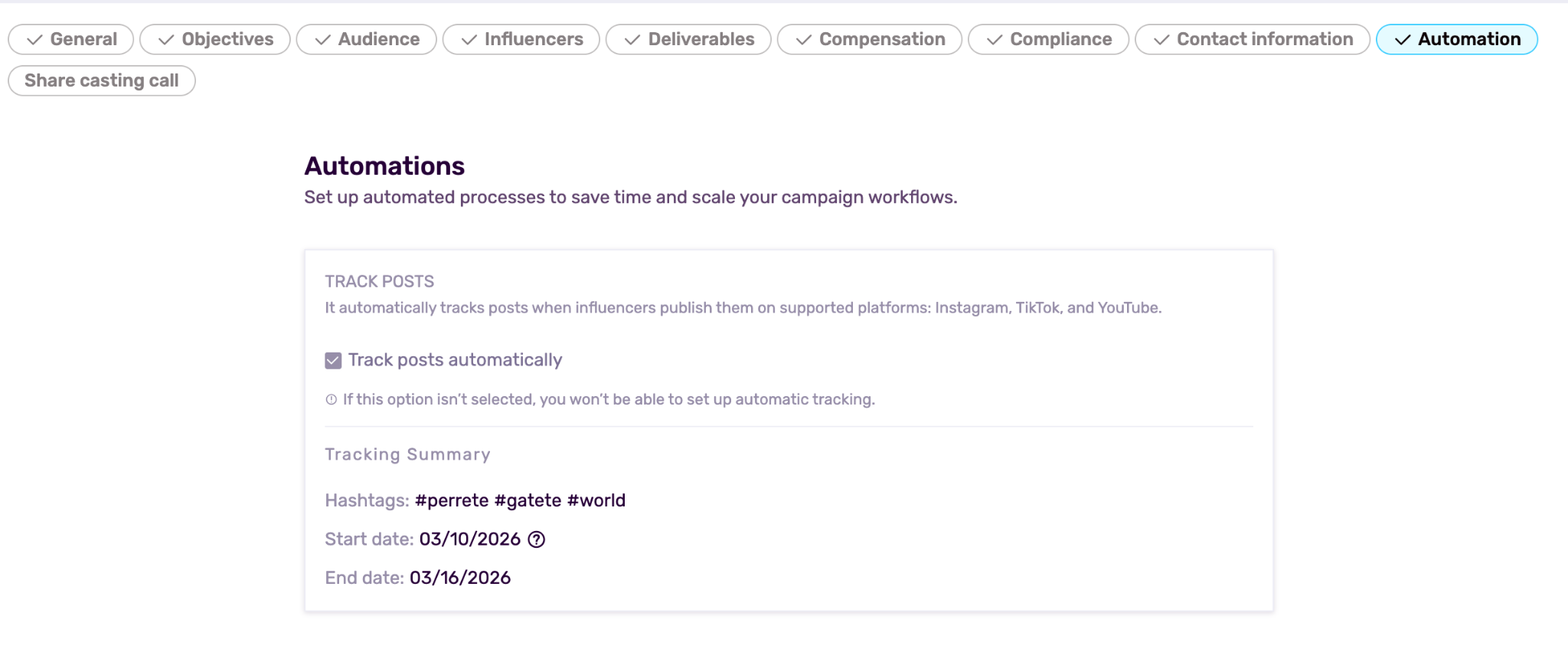
Enable Automatic Tracking
Check the box to "track posts". This tells the system to create a "Campaign-type" tracking session automatically once influencers are accepted.
In the general content tab, inside tracking you’ll also see stored your in-campaign tracking under the type of Campaign.
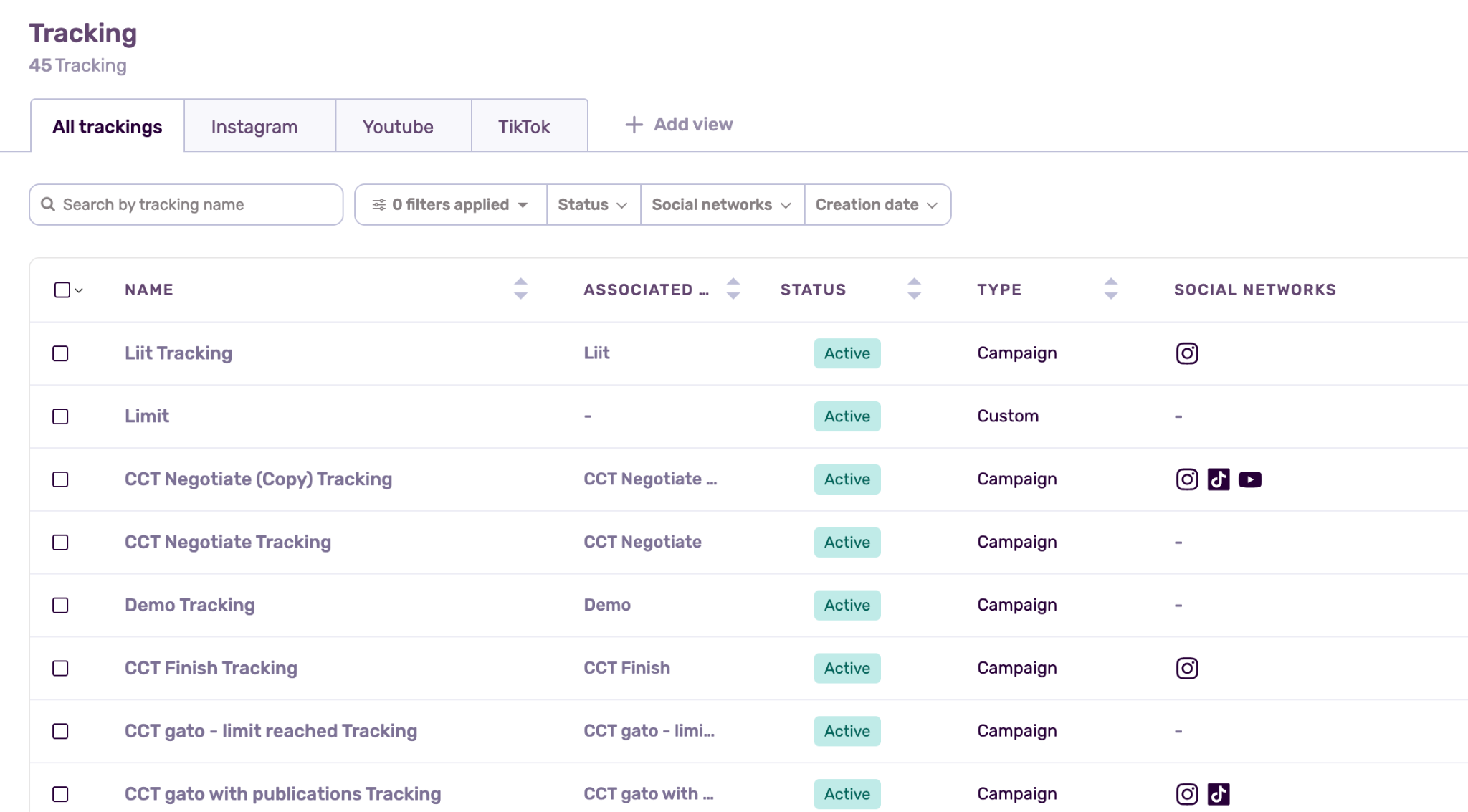
Note: Tracking with the custom type label is the other tracking you’ve set up individually outside a campaign.
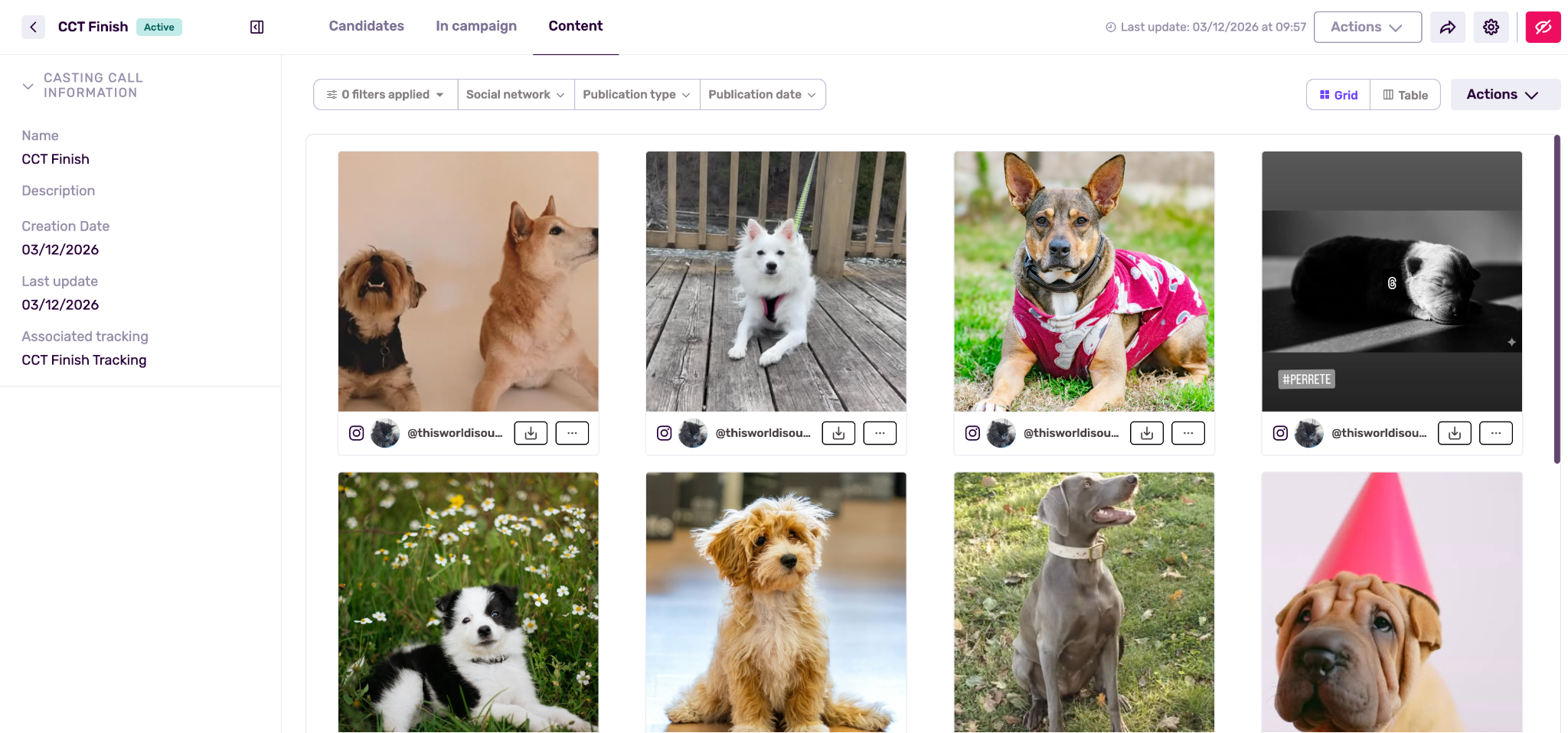
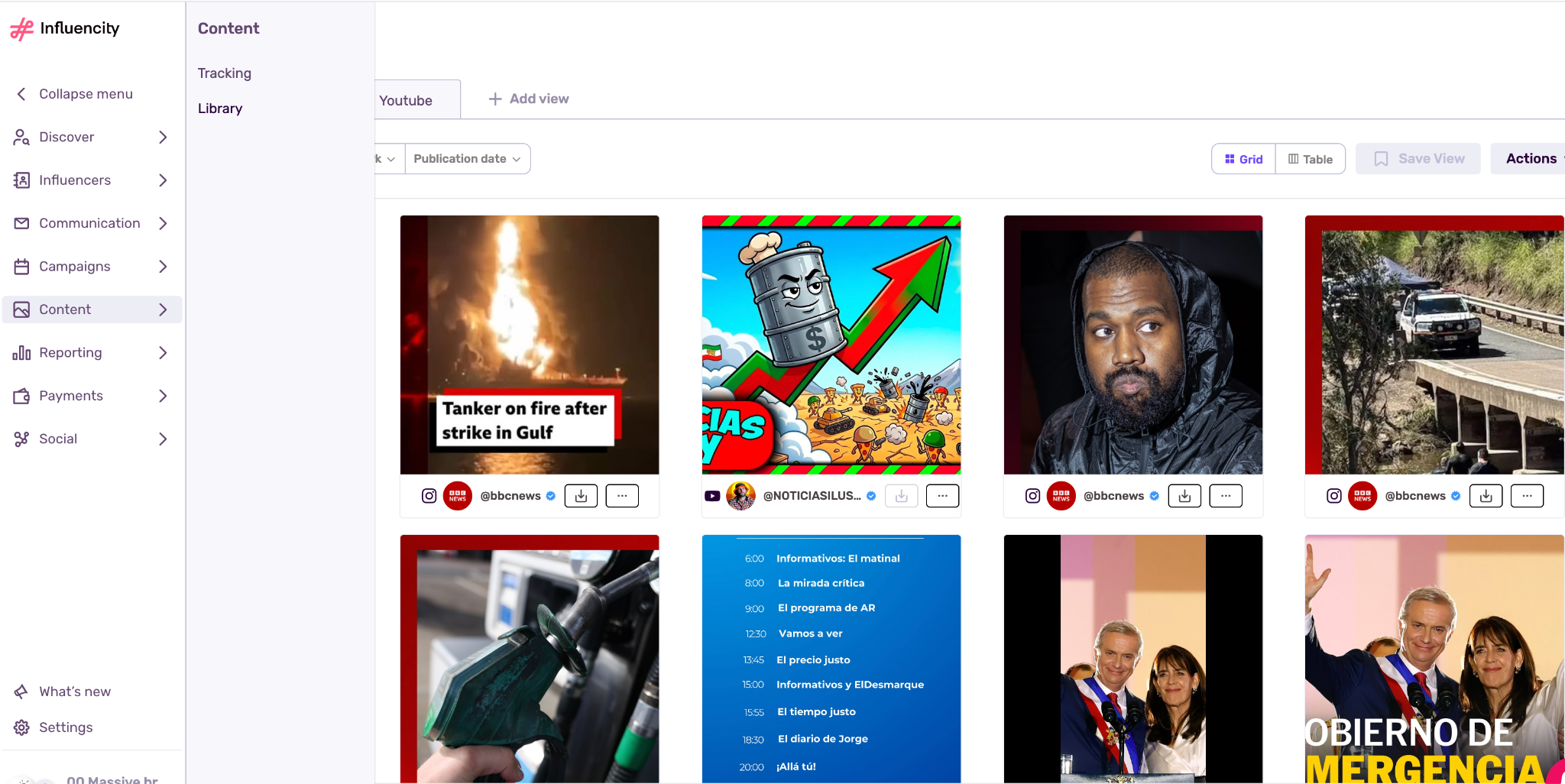
You will also be able to see the content collected within your campaign in both places, inside the campaign tab of content and inside the content tab inside content library.
Verify the Timeline
The system automatically sets the Start Day for tracking to one day before your campaign's official start date. This proactive window ensures that any early or "teaser" content is captured immediately.
Automatic Shutdown
Tracking will run for the duration of your campaign and will automatically stop once the End Day passes.
Step 3: Moving Influencers to "In Campaign"
Tracking does not begin until a creator officially joins your campaign:
- Acceptance Trigger: Once an influencer accepts your agreement, move them to the "In Campaign" stage.
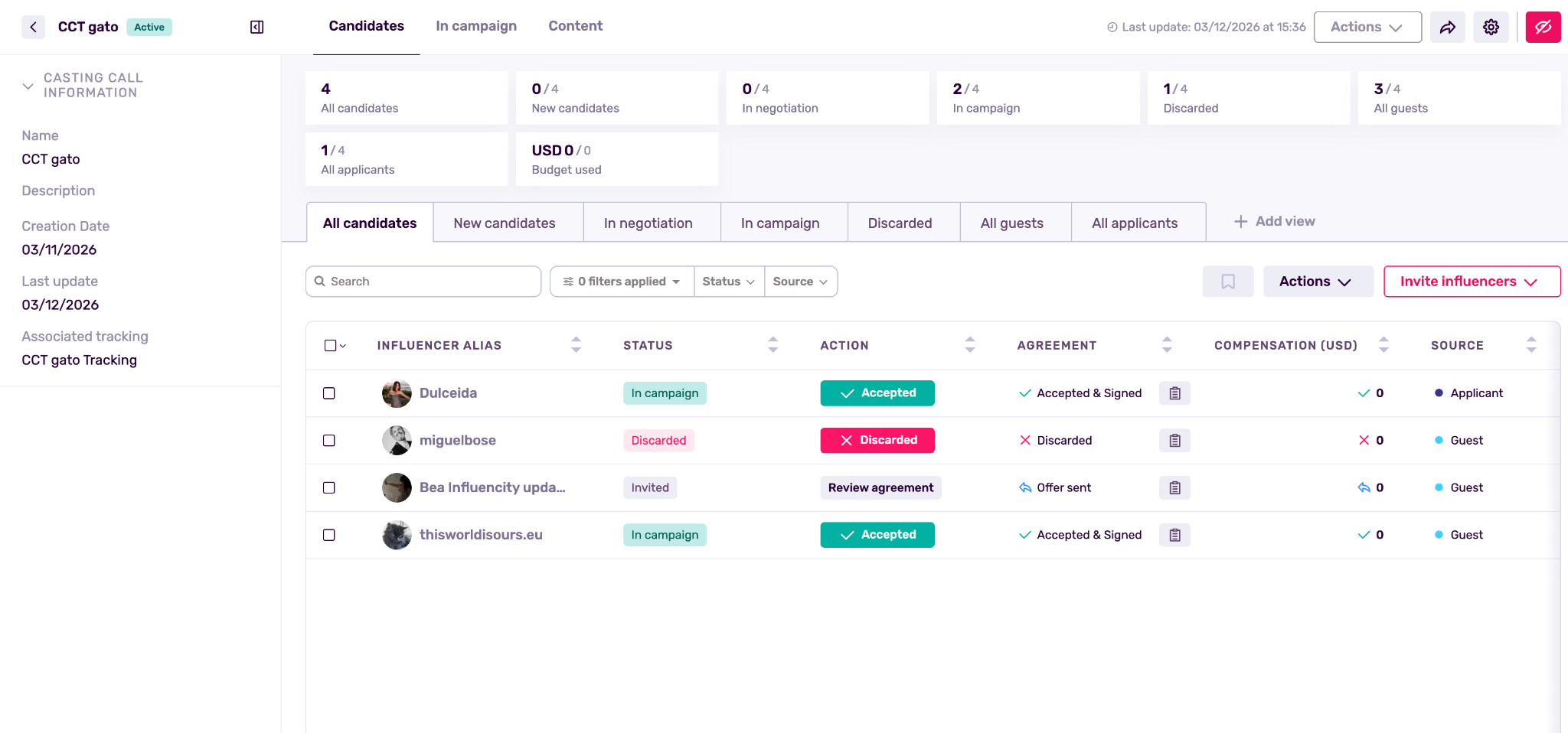
- Profile Creation: At this moment, the system automatically creates a tracking profile for them and begins scanning their social channels roughly every 8 hours for new content.
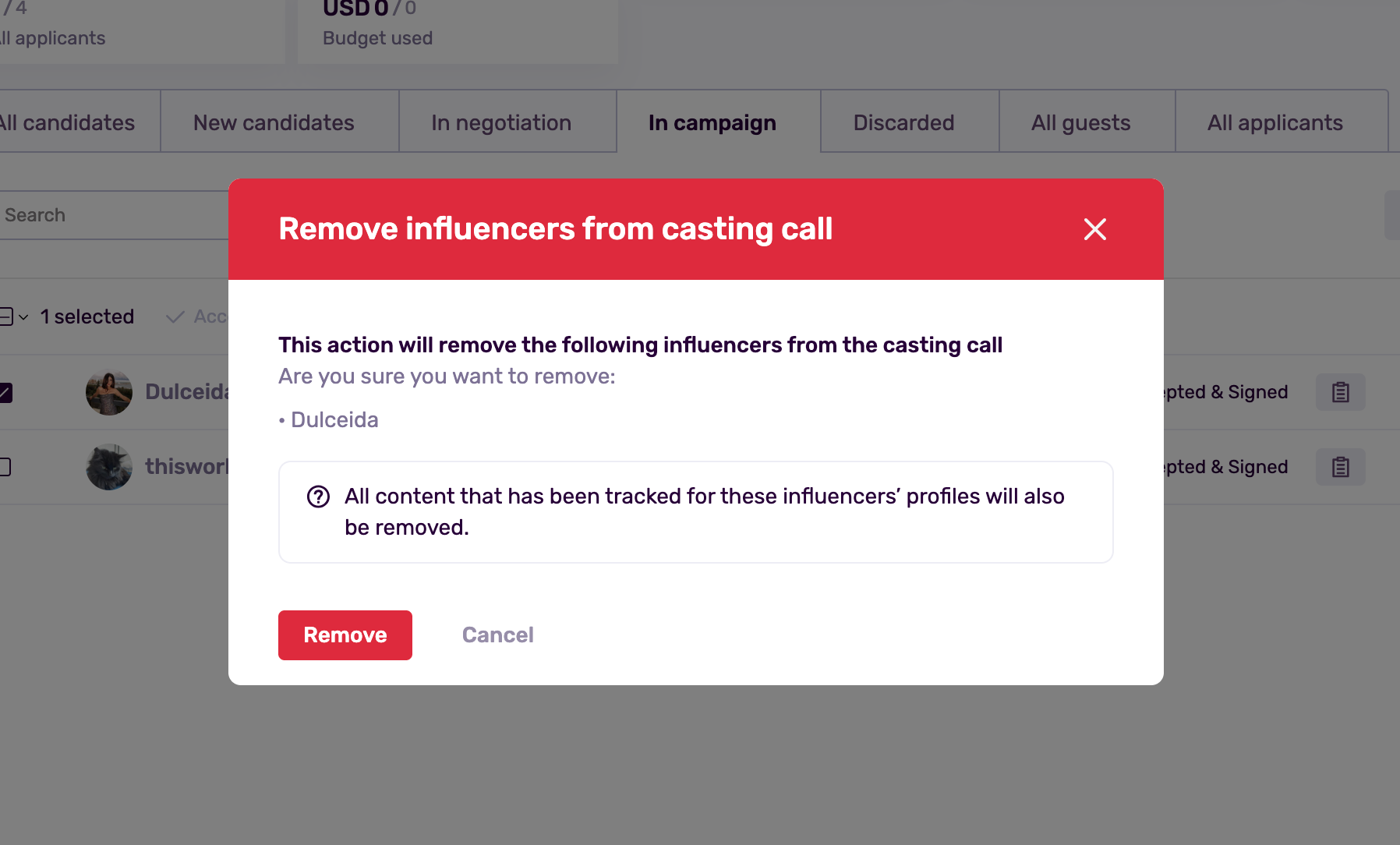
- Data Hygiene: If you delete an influencer from the Casting Call, the system will automatically remove their associated tracking data and captured content to keep your campaign reports clean.
Step 4: Monitoring Statuses
You can track real-time progress in the "In Campaign" tab. The Posted column will show a comparison between negotiated deliverables and detected posts (e.g., "2/4").
Use this status decoder to understand where each influencer stands:
|
Status |
What it means |
|
Active Tracking |
The system is currently scanning the creator's profile for your keywords. |
|
Content Identified Live |
A match has been found, and the content is currently "live" on the social network. |
|
Removed Expired |
The content was detected but has since been deleted by the influencer or has expired (typical for Stories). |
Pro-Tips & Reminders
The Content Tab
Use the Content tab within your Casting Call to view a dedicated "mini-library" of all media automatically pulled for that specific campaign.
Unified View
All content captured here is also automatically synced to your global Content Library for long-term organization.
Manual Adjustments
While tracking is automatic, you can still manually add specific posts to include in your reports.