![LogoInfluencity_Negative.png]](https://knowledge.influencity.com/hs-fs/hubfs/LogoInfluencity_Negative.png?height=40&name=LogoInfluencity_Negative.png)
When you use Influencity’s Content Tracking to monitor posts from your influencers, it’s easy to export both the content and performance metrics, whether you need a single post or full bulk export.
This guide shows you step by step how to download everything you need: the content itself, public KPIs, and bulk exports, so you can archive, share, or analyze data outside the platform.
What You Can Export
|
Data Type |
What You Get |
|
Post content |
Images, videos, carousels, full previews of tracked posts (Feed + Reels; Stories are shown as previews even if KPIs are unavailable) |
|
Public KPIs |
Likes, comments (for posts), follower counts, plus summary metrics like total interactions when posts are included in a Report. |
|
Bulk exports |
Full sets of tracked content and KPIs (in one go), via the Actions tab, ideal for backups, client sharing, or external reporting. |
Note for Stories & Reels: While Stories are tracked (and you’ll get a preview), they do not include downloadable KPIs. Reels, like standard posts, will include likes/comments data.
How to Export: Step by Step
Step 1
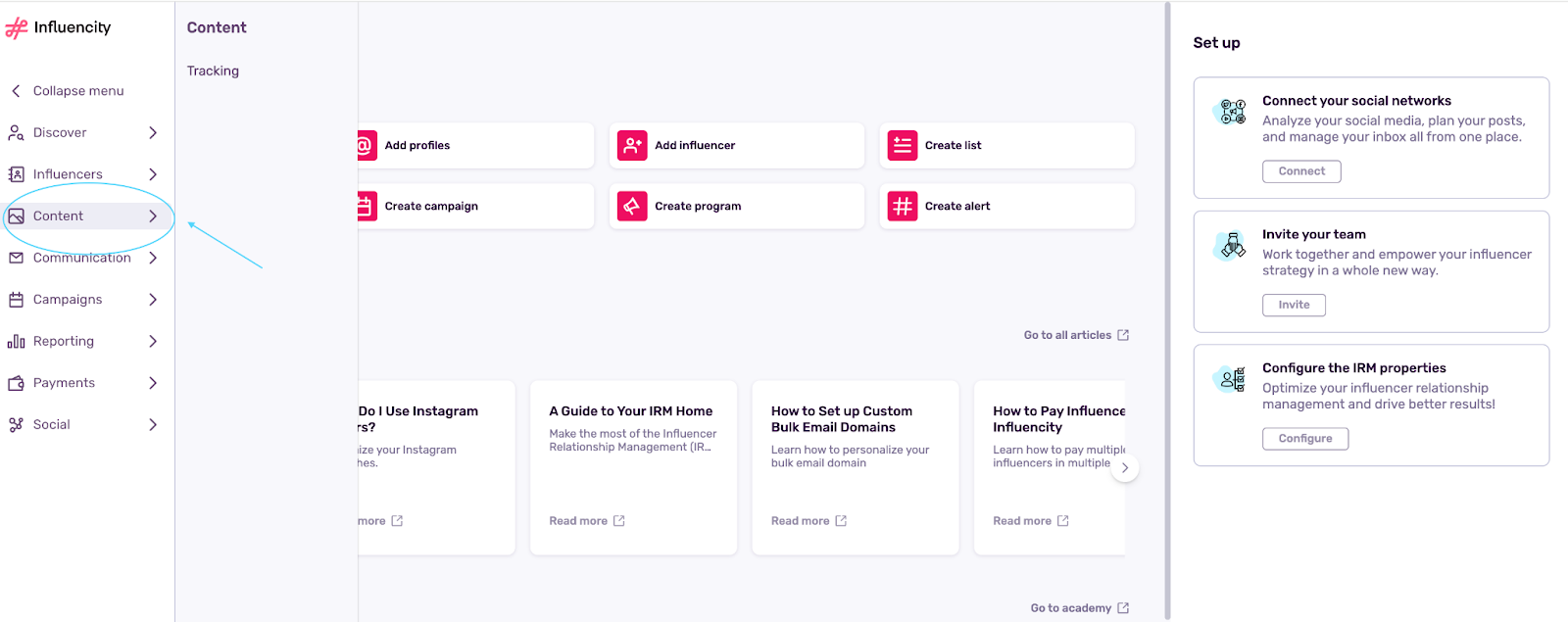
Go to the Content section in the Influencity sidebar. This is where all tracked content lives.
Step 2
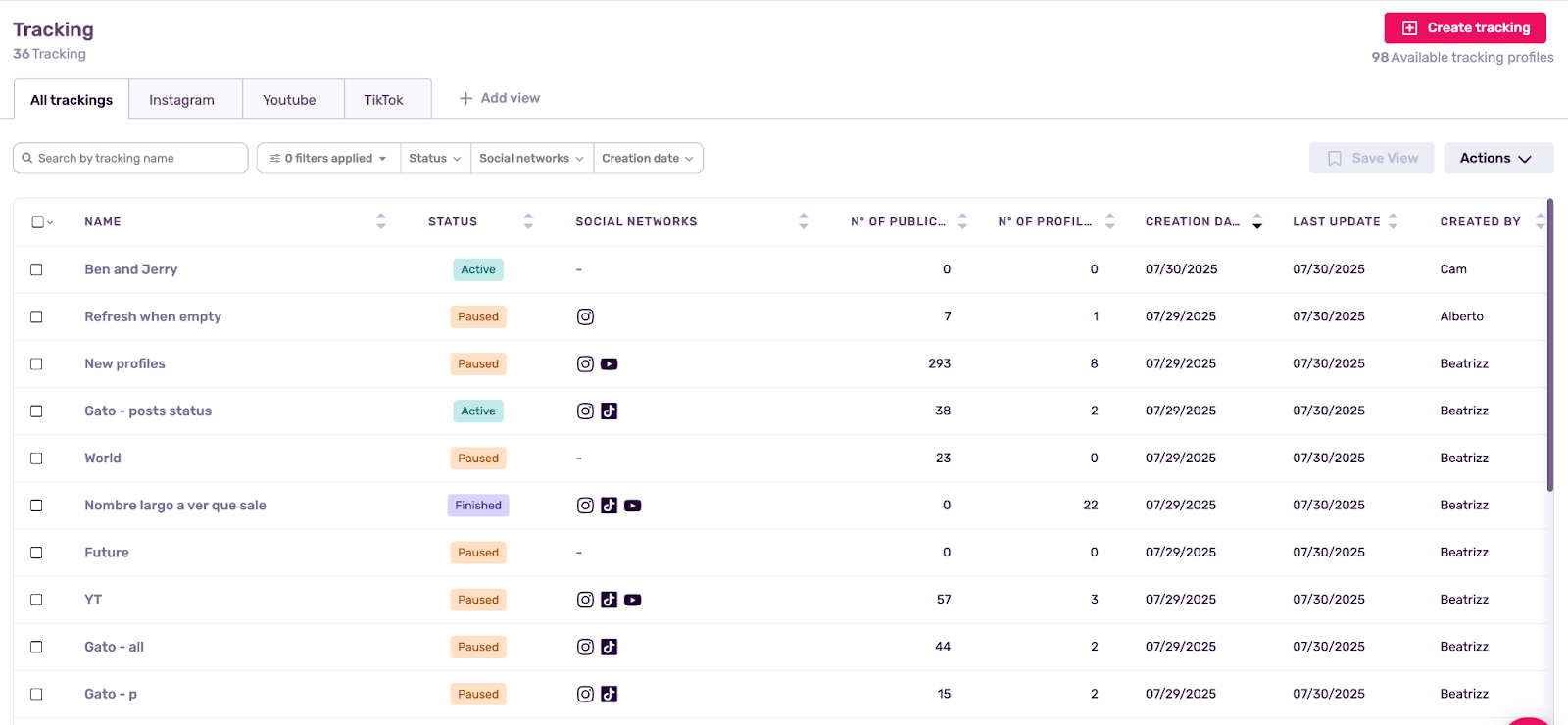
Find the content you want- Use table view (for a data-centric export) or grid view (for a visual overview) to locate the posts.
Step 3
Use the “Actions” tab
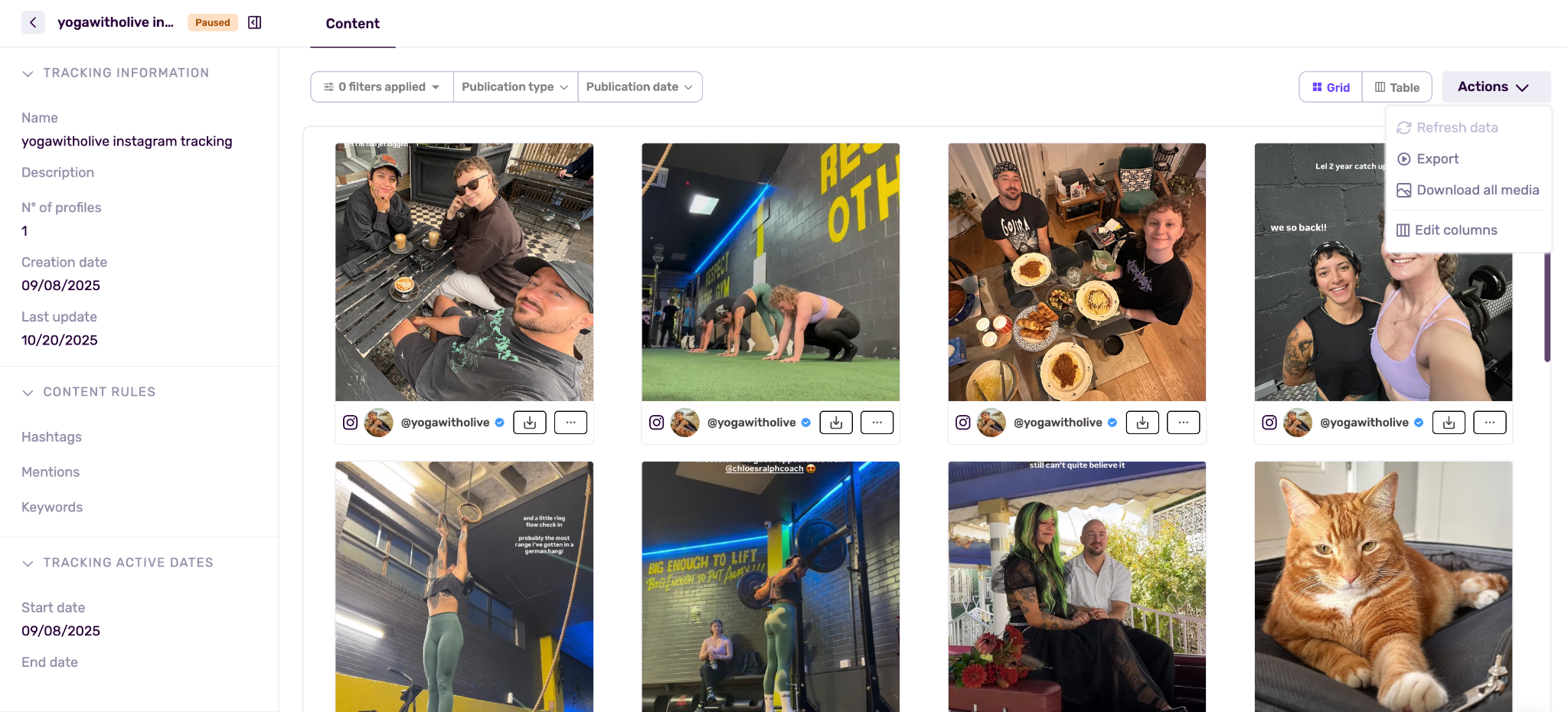
- For individual exports: select the post → click Actions → Export → choose file format.
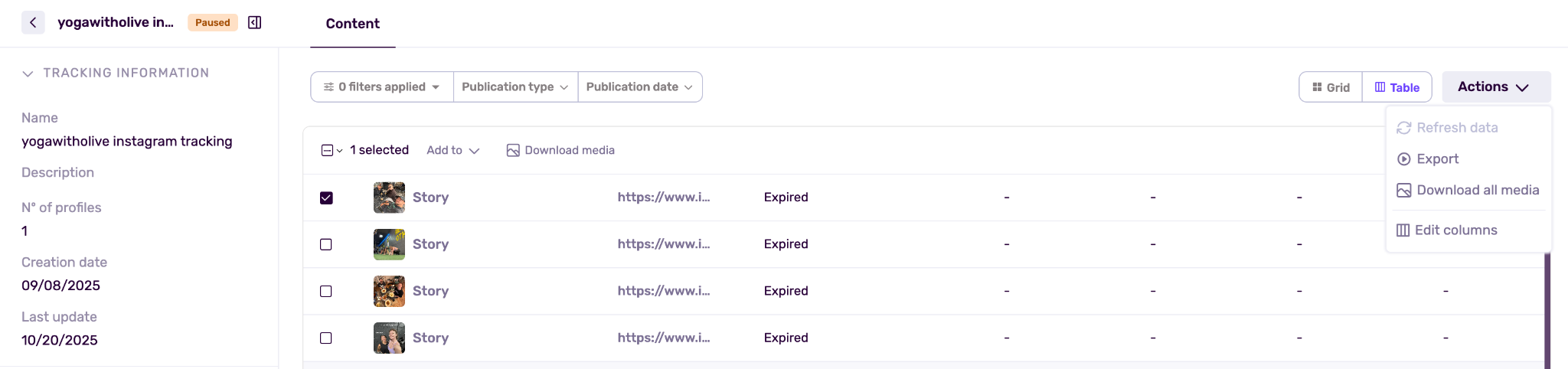
- For bulk exports: either select multiple posts or use the “Export all” option in the Actions menu.
Step 4
Download the content. The file will be emailed to your workspace address (or download directly depending on what you download).
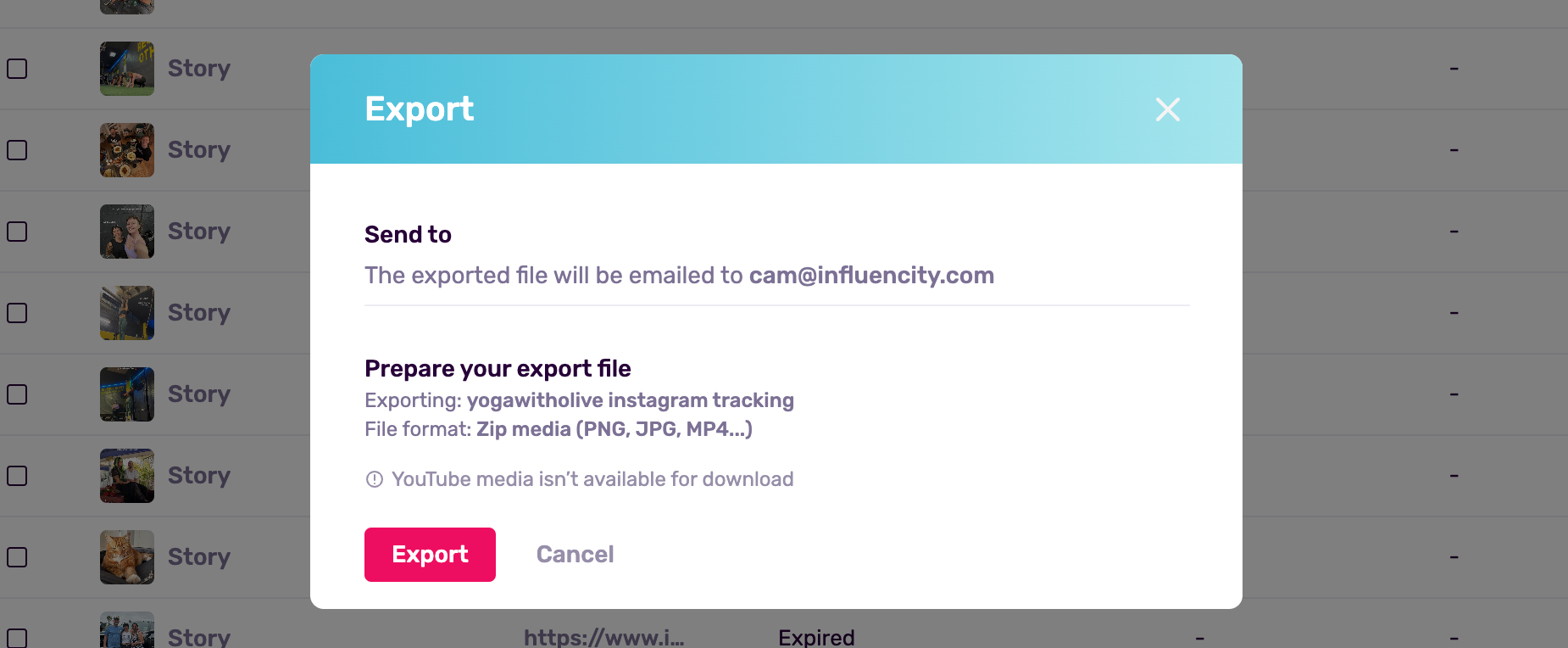
Note: If you download individually, you’ll get the content directly, however, if you download in bulk it will be sent to your email.
Step 5
Open and review your file:
- The export includes content previews (image/video links or embedded thumbnails) plus KPIs (likes, comments, follower count, etc.).
- Saved as XLSX / CSV, good for Excel, Google Sheets, or other analysis tools.
What Exported Reports Include
- All posts you exported, feed posts, Reels, carousels, with preview links or embedded media.
- Public metrics: likes, comments, follower counts.
- Aggregate calculations (if you export from a report built from tracked content): total posts, total engagements, engagement rate, total reach (when manually input), cost per engagement/mille (if you added cost data), etc.
- All data visible in the report, even columns hidden in the on-screen view will appear in the spreadsheet.
Aspects to Consider
- You cannot manually edit tracked content from the Content tab. If you need to add custom metrics (e.g. internal notes, cost, reach, impressions), first send the post to a Report, then edit there.
- Stories are treated differently: they are tracked and previewed, but because public KPIs often don’t exist, their export may only include a thumbnail , not metrics.
- If a post’s data is private (e.g. impressions, reach, saves), you’ll need to manually input those metrics once you receive them from the influencer, ideally inside a report.
Pro Tips for Cleaner, Smarter Exports
- Use filtering (by influencer, platform, date, or post type) before exporting to avoid dumping irrelevant content.
- Before exporting bulk data, pause any active tracking if you don’t want future posts included, helps avoid accidental duplicates.
- Consider exporting at the end of each campaign or once a month, this creates a clean archive and protects you if content gets deleted or modified later.