![LogoInfluencity_Negative.png]](https://knowledge.influencity.com/hs-fs/hubfs/LogoInfluencity_Negative.png?height=40&name=LogoInfluencity_Negative.png)
Getting content approved can sometimes feel like an endless game of digital ping-pong. You send a video draft via wetransfer, they reply on WhatsApp, the caption gets lost in an email thread, and suddenly, publication day is looming and everyone is confused.
We are putting an end to the madness.
Our new Content Validation workflow turns that scattered chaos into a sleek, centralized runway. Everything from the creative brief to final approval now lives in one unified space.
Here is exactly how the new system works on your end.
Step 1: Entering Mission Control
Say goodbye to digging through your inbox for campaign details. Your entire workflow lives in a single, unique URL. Think of it as your personal air traffic control tower for the campaign.
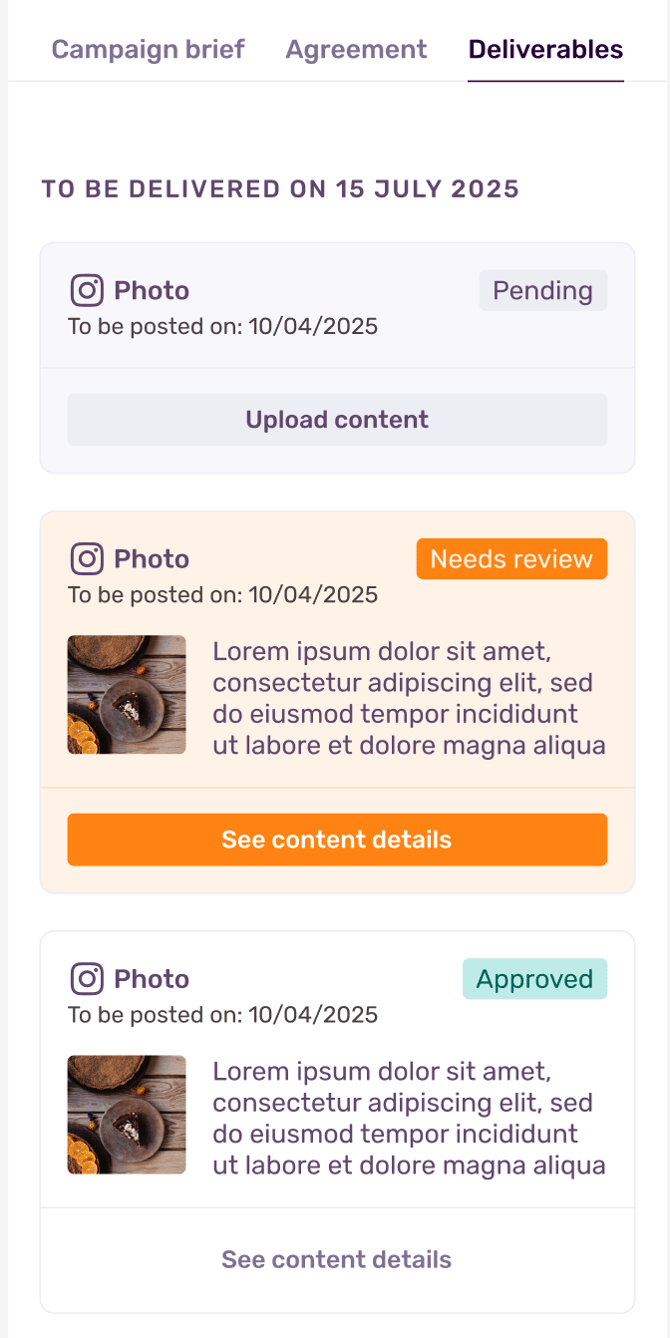
Once you and the brand sign the final agreement, a new Deliverables tab will unlock on your view. This is your master calendar and roadmap. It breaks down exactly what you need to create, whether that is a snappy TikTok, an Instagram carousel, or a YouTube Short, and the exact date it needs to go live.
If the brand has requested to review your content before publication, you will see your tasks sitting in the Pending stage, waiting for your magic touch.
Step 2: The Upload Station
Ready to share your content? When it is time to submit a draft, simply click the Upload Content button next to your pending deliverable. A clean, straightforward window will pop up.
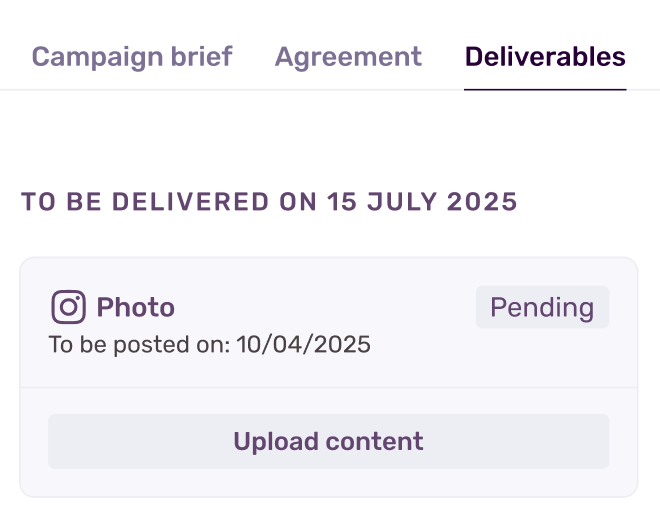
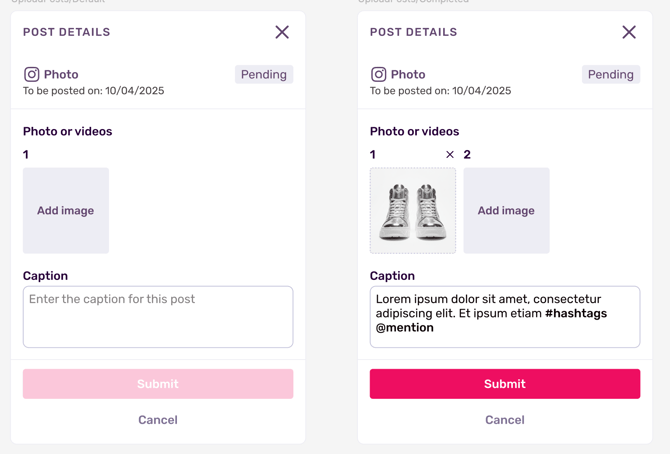
For Instagram and Tiktok you simply need to upload your image, video or thumbnail, and paste your caption directly into the text box. Do not worry about meticulously formatting your tags, our system automatically extracts and highlights your hashtags and mentions so the brand can read them with clarity.
The YouTube Exception
Video files are heavy, and uploading a 20-minute vlog directly into a dashboard is not the play. For YouTube deliverables, simply upload your video to YouTube as an Unlisted Link.
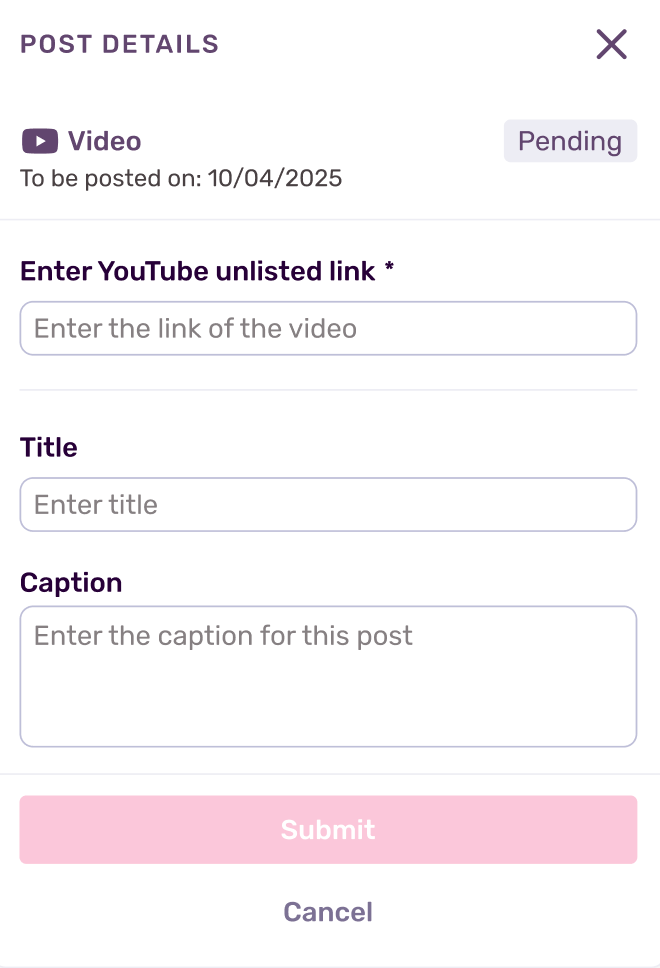
Paste that link into our platform along with your planned video title and caption. Simple as that.
Once you hit submit, your content moves to the On Brand Review stage. At this point, your draft is locked in. You can review your submission, but the editing pen is temporarily out of your hands while the brand takes a look.
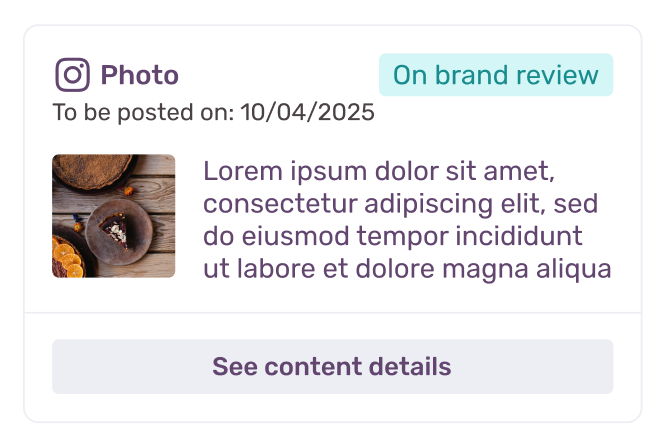
Step 3: The Green Light
Now, the brand takes the stage to review your work. Two things can happen:
Scenario A: Revisions Needed
If the brand wants a slight tweak, maybe adjusting a talking point or fixing a visual detail, they will request a revision.
You will automatically receive an email notification alerting you to the requested changes. Then, the content status will shift back to your court. You just pop back into the editing window, review their specific comments, execute the adjustments, and send it right back up the ladder for a second look.
The brand will also get notified that you’ve added the tweaks and the content needs to be reviewed again.
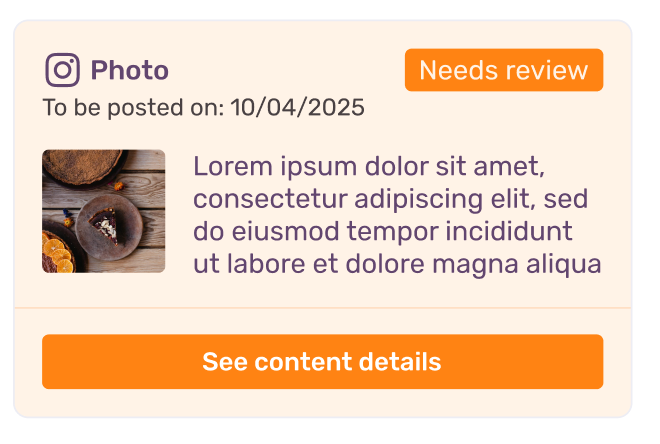
Note: Keep in mind that the needs review and influencer review stages can present some back and forth if you and the influencer need some rounds till you are both happy with the final content. This is normal.
Scenario B: The Green Light (Approved)
If they love it on the first try, they will hit approve. Your content status officially changes to Approved.
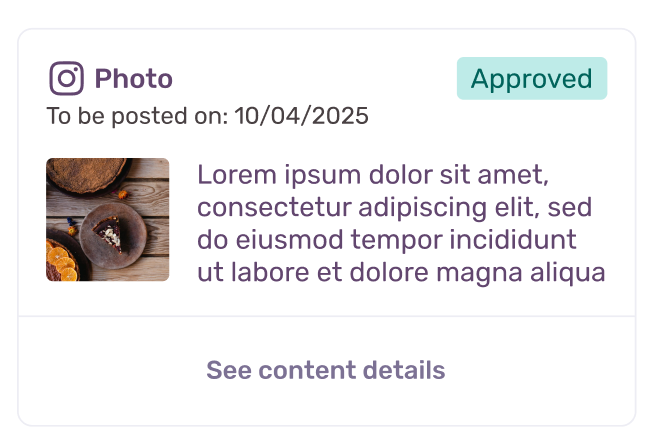
You are completely cleared for takeoff and to post it on the set date.
The Final Step: Go Live
Once you have that Approved status, your job in the validation funnel is done. All that is left for you to do is publish the post on your actual social media channels on the scheduled date.
You do not need to send us the live link, our tracking system is smart enough to handle the rest, automatically catching the live post and updating the campaign board on the brand's end.