![LogoInfluencity_Negative.png]](https://knowledge.influencity.com/hs-fs/hubfs/LogoInfluencity_Negative.png?height=40&name=LogoInfluencity_Negative.png)
Natively browsing social media to scout creators is a massive part of any influencer marketing workflow, but jumping back and forth between tabs to manually copy handles and check metrics is a major bottleneck.
The Influencity Chrome Extension removes this issue by acting as a direct bridge between your social media feeds and your IRM (Influencer Relationship Management). It allows you to save, vet, and analyze creator profiles instantly without ever leaving Instagram, TikTok, or YouTube.
Why Use the Influencity Extension?
Instead of interrupting your sourcing flow, the extension brings Influencity's data right to where you are working.
- Zero Tool-Hopping: Vet creators directly on their social media profiles.
- Instant Brand Safety Validation: Instantly view safety metrics before moving a creator forward in your pipeline.
- Effortless IRM Integration: Save profiles directly to your account with a single click, creating an automated "trampoline" effect straight into your workflows.
Step 1: Installation and Setup
- Head over to the Chrome Web Store and search for the Influencity extension.
- Click Add to Chrome to install it.
- Pin the extension: Click the puzzle piece icon in your Chrome toolbar and pin the Influencity icon. Pinning keeps it easily accessible and acts as a quick toggle to hide or show the tool.
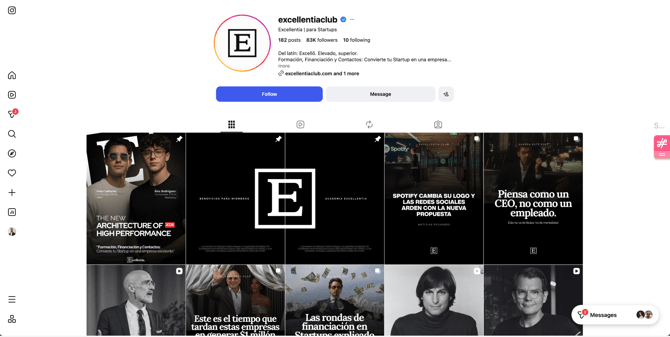
Note on Authentication: The extension shares a login session with your main Influencity platform. If you are already logged into the web app, the extension automatically recognizes your session. If you are logged out, clicking the extension will simply redirect you to the main login screen to authenticate.
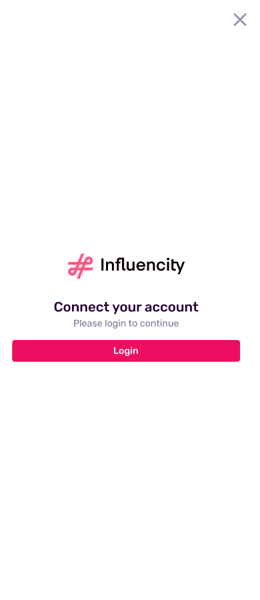
Step 2: Navigating the Launcher
Once installed, the extension operates via a floating sidebar called the Launcher.

- Supported Platforms: The Launcher will automatically appear whenever you navigate to Instagram, YouTube, or TikTok.
- Custom Positioning: If the Launcher ever blocks text or a button on your screen, click and drag it vertically up or down the right side of your window to position it wherever it suits you best.
- Hiding the Launcher: If you need to hide the sidebar completely (for example, to take a clean screenshot of a creator's page), simply click the pinned Influencity extension icon in your top Chrome toolbar to toggle its visibility on or off without logging out.
Step 3: Vetting and Analyzing Profiles (How the Logic Works)
The extension is highly contextual. Depending on the page you are viewing and whether the creator is already in your database, the Launcher will adapt to give you the exact options you need:
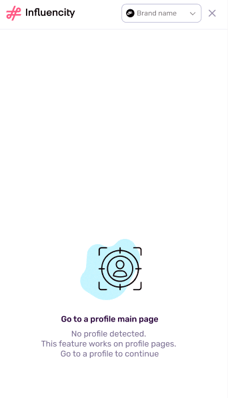
Scenario A: You Are Not on a Creator’s Main Profile Page
If you open the launcher while browsing a general feed or a settings page, the extension will simply prompt you to navigate to a creator's main profile page to fetch data.
Scenario B: The Profile Is New to Your Database
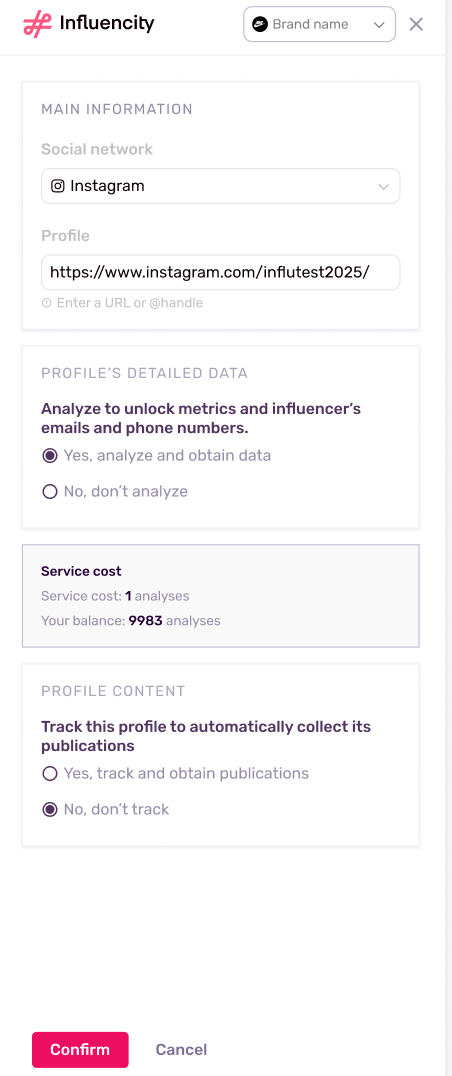
If you open the Launcher on a profile that hasn't been saved to your Influencity account yet, the extension will mirror the platform's standard discovery modal:
- It will ask if you want to save the profile to your database.
- You will be prompted to select your tracking options and confirm the usage of your account credits.
Scenario C: The Profile Is Saved but Not Yet Analyzed
If the profile exists in your database but has no metric history, the extension will display a prompt asking if you'd like to analyze it. Confirming this will consume a profile analysis credit, trigger the loader, and pull real-time data directly into your sidebar view.
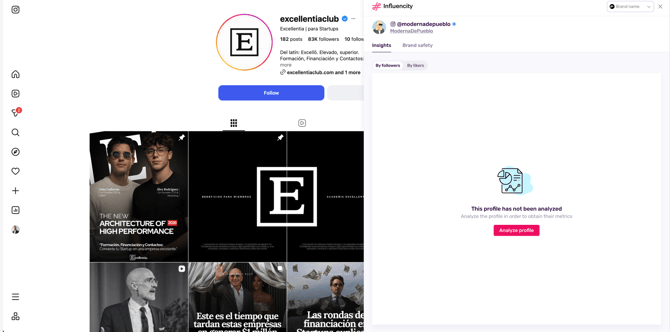
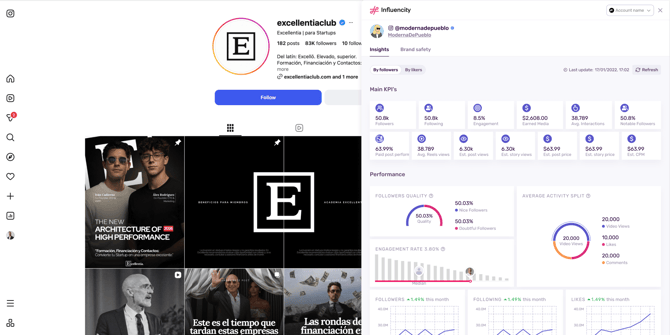
Scenario D: The Profile Is Fully Analyzed
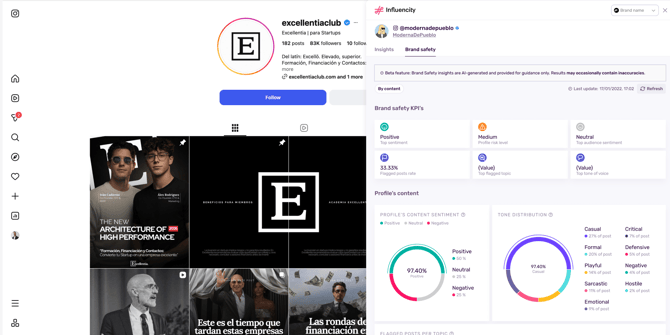
For creators who are already fully analyzed in your system, the extension skips the setup and instantly renders two critical data tabs:
- Insights: A snapshot of core audience data and performance metrics.
- Brand Safety: An evaluation of how safe and aligned the creator is for your brand.
- Data Freshness: If the data on screen is older, you can click the Refresh button inside the extension to instantly run a new analysis and update the metrics to their current status.
Step 4: Moving from Quick Vetting to Advanced Management
To keep the extension lightweight and fast, it focuses strictly on displaying Insights and Brand Safety data. It does not handle heavy administrative editing or campaign building directly within the social media window.
When you are ready to take deeper action, the extension provides fast shortcuts to the web application:
- Deep Dive into a Profile: Click on the Influencer Alias/Name within the extension pane. This opens the creator’s complete, centralized profile in a new browser tab within the Influencity web app. From there, you can activate full content tracking, add them to specific campaign lists, or manage communication.
- Return to the Dashboard: Click the Influencity Logo at the top of the extension panel to immediately launch a new tab leading directly to your main account home page.
- Workspace Switching: If your organization manages multiple accounts or workspaces, the dropdown at the top of the extension allows you to toggle seamlessly between workspaces so profiles are always saved to the correct team environment.